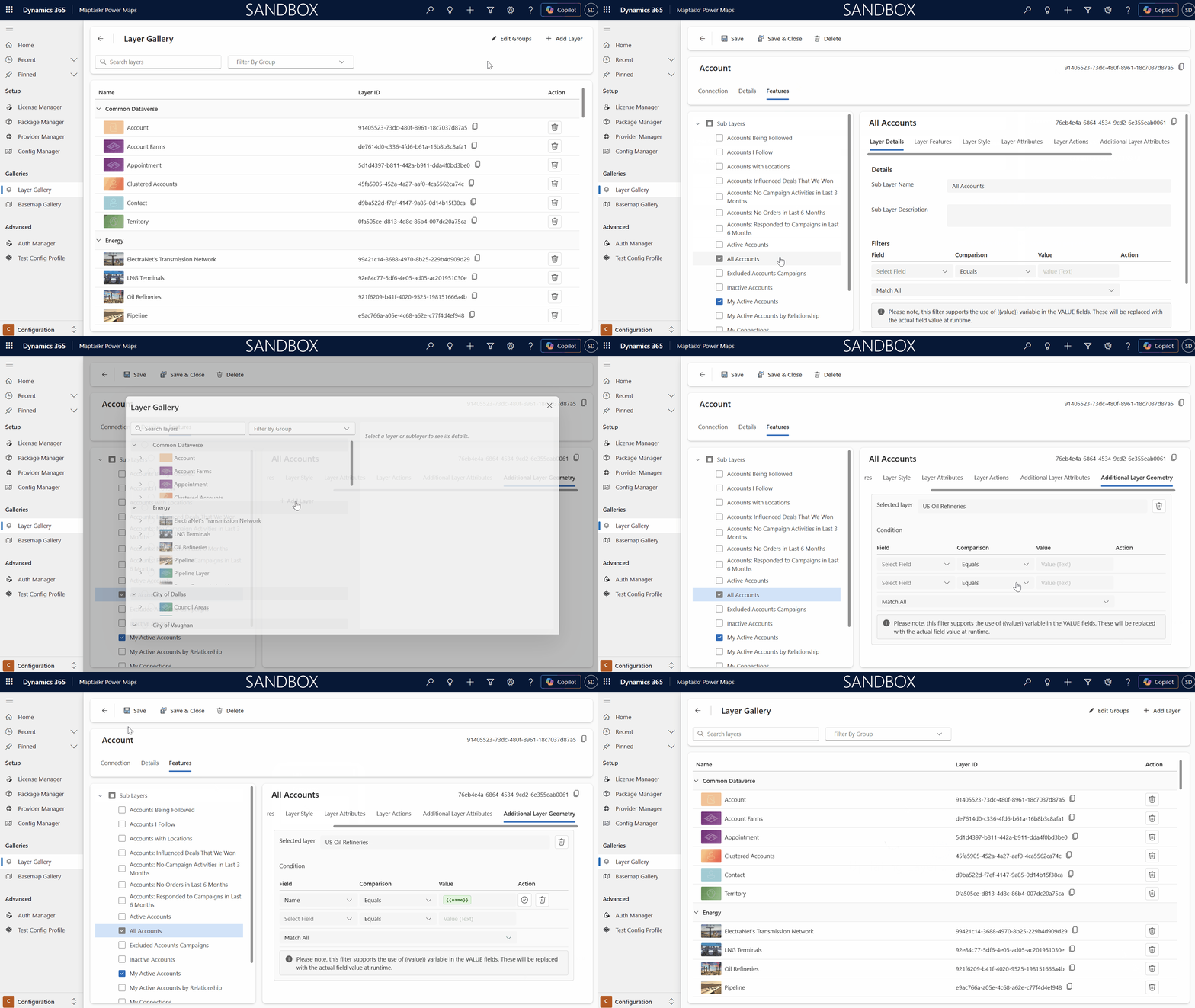
Additional Layer Geometry
Additional Layer Geometry allows administrators to use existing relationships between different layers (or within the same layer) to automatically select related features. This streamlines lookup and selection for users, saves time, and provides a visual representation of those relationships.
Overview
Additional Layer Geometry enables you to:
- Define the conditions under which selection should occur.
- Automatically select related features behind the scenes when a feature is selected in the main layer, based on the configured conditions in Additional Layer Geometry.
Adding an Additional Layer Geometry
-
Open the Layer Gallery in the Maptaskr Power Maps Admin app.
-
Select the layer and sublayer you want to add additional attributes to.
-
Select the Additional Layer Geometry tab.
-
Click Add Layer.
-
Select the required layer from the Layer Gallery. If it is not listed, confirm that the layer has been added to the gallery.
-
Complete the condition fields (Field, Comparison, and Value).
-
Click Save or Save & Close
The Value field contains an ID because Company Name is a lookup field. Lookup fields require the record ID (not the display name) to function correctly. In this example, when an account is selected, the system uses the account ID to automatically select all related contacts.