Map Filters
There are two main ways to apply filters in Maptaskr Power Maps:
- Configure filters in Config Manager so they are applied automatically when the map loads.
- Add filters interactively while using the map.
This page covers interactive filtering. For load-time filters, see map filtering.
Filter Actions
When filtering from routes, features, shapes, and search results, you can use one of the following actions:
| Action | Description |
|---|---|
| Add to Filter | Add a new filter to the current filter list. |
| Set as Filter | Replace all existing filters with a new filter. |
You can add filters interactively by:
- Using search results
- Selecting a feature
- Selecting a route
- Selecting a shape
- Using Filter mode
Filter Using a Search Result
-
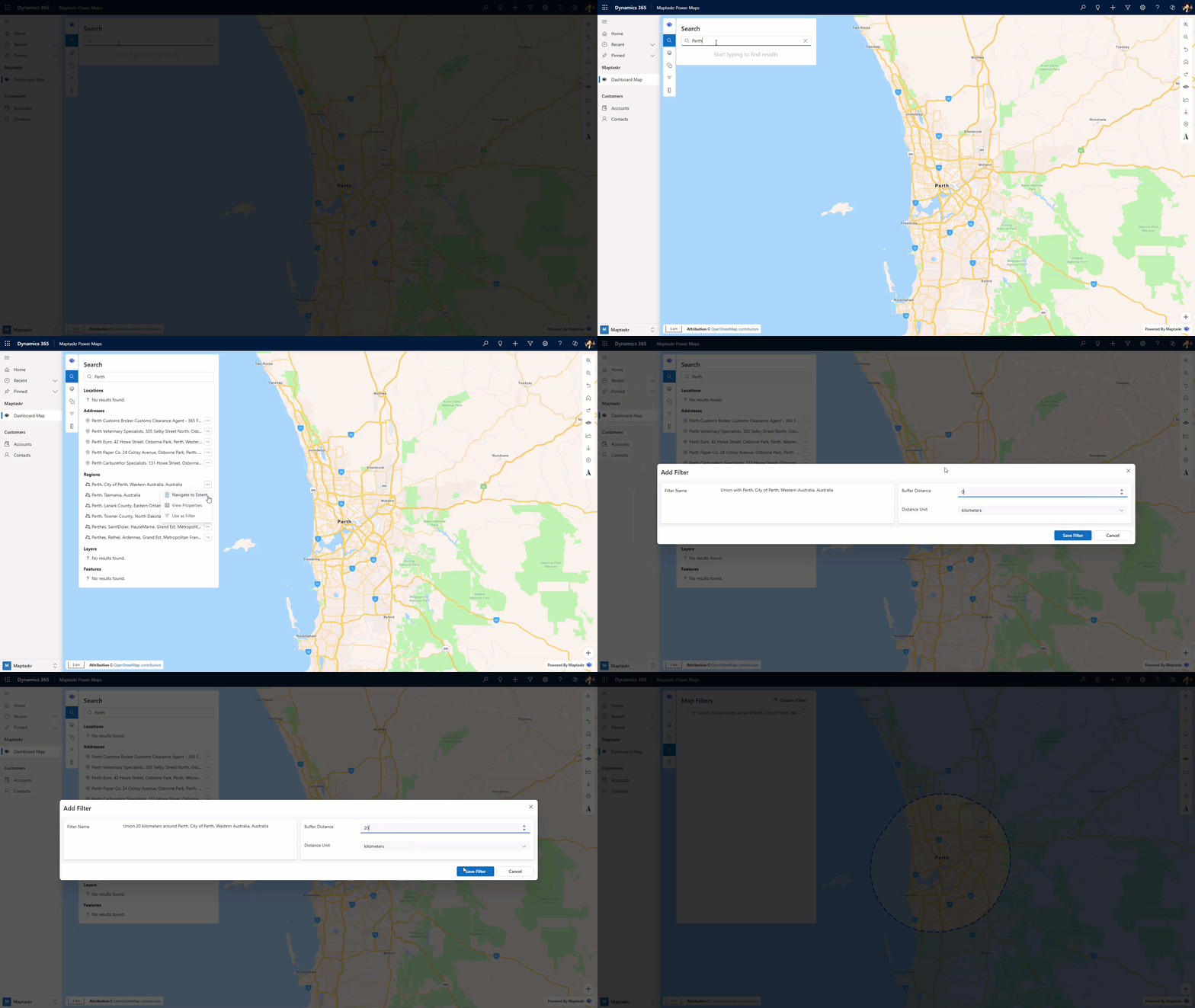
Open your map and make sure search is enabled.
-
Search for a location, address, region, layer, or feature.
-
In the search result options menu, select Add to Filter or Set as Filter.
-
If you selected Add to Filter, set the buffer distance and distance unit, then click Ok.
-
If you selected Set as Filter, a filter is applied automatically with a buffer of
0. -
The filter panel opens and shows all active filters.
- Enable or disable filters as needed.
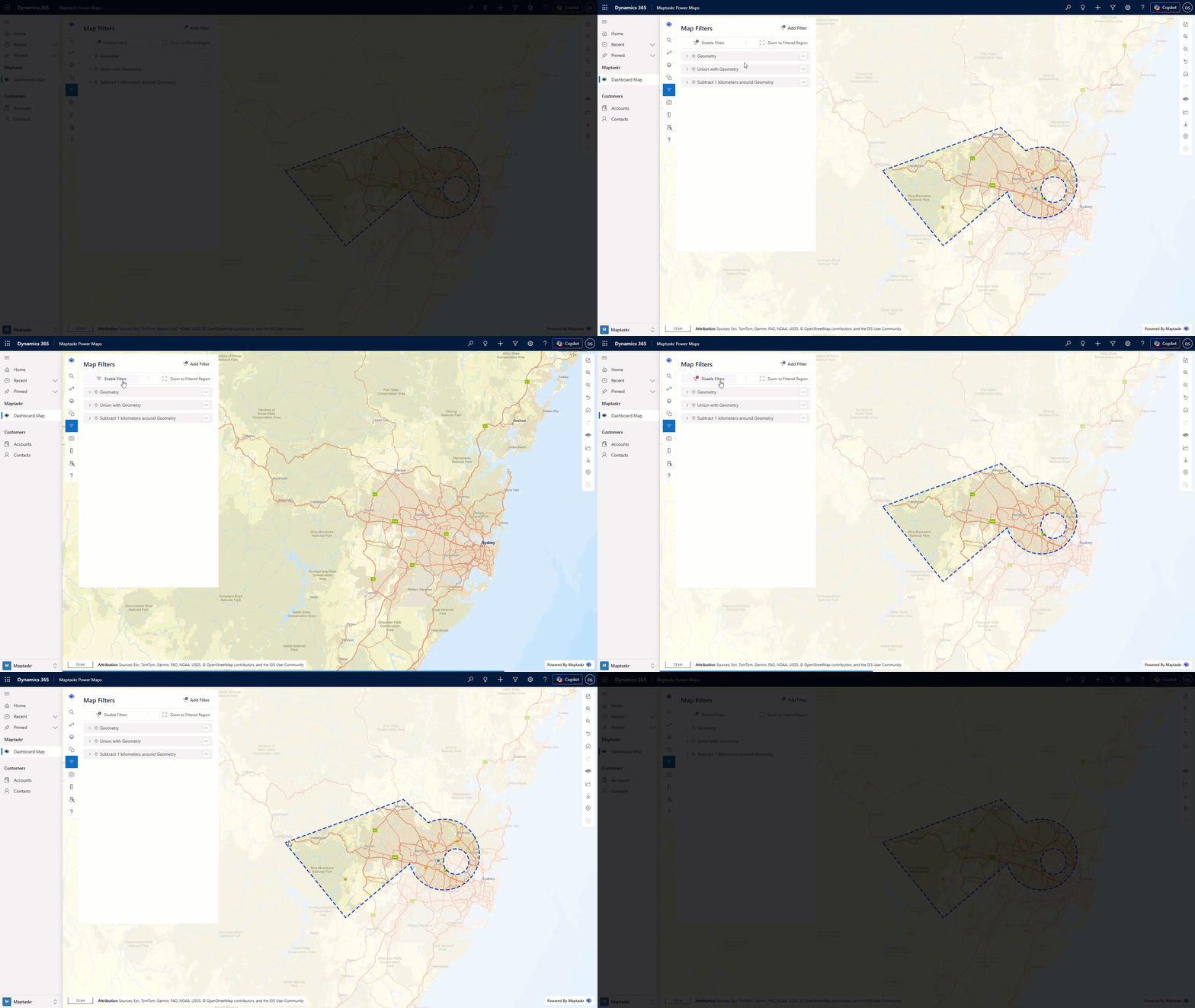
Filters are stacked in the order they are added. Only the most recently added filter can be edited or removed. Filters above the most recent one are locked until the most recent filter is removed.
Filter Using a Feature
Features are clickable records from any visible, enabled layer.
-
Make sure the layer is enabled and visible on the map.
-
Click the feature you want to filter by.
-
Select Add to Filter or Set as Filter.
-
If you selected Add to Filter, set the buffer distance and distance unit, then click Ok.
-
If you selected Set as Filter, a filter is applied automatically with a buffer of
0.
Filter Using a Route
-
Select a route on the map, or click Edit for a route in the Routes panel.
-
In the route properties panel, select Add to Filter or Set as Filter.
-
If you selected Add to Filter, set the buffer distance and distance unit, then click Ok.
-
If you selected Set as Filter, a filter is applied automatically with a buffer of
0.
Filter Using a Shape
-
Select the shape on the map.
-
In the shape actions, select Add to Filter or Set as Filter.
-
If you selected Add to Filter, set the buffer distance and distance unit, then click Ok.
-
If you selected Set as Filter, a filter is applied automatically with a buffer of
0.
Filter Using Filter Mode
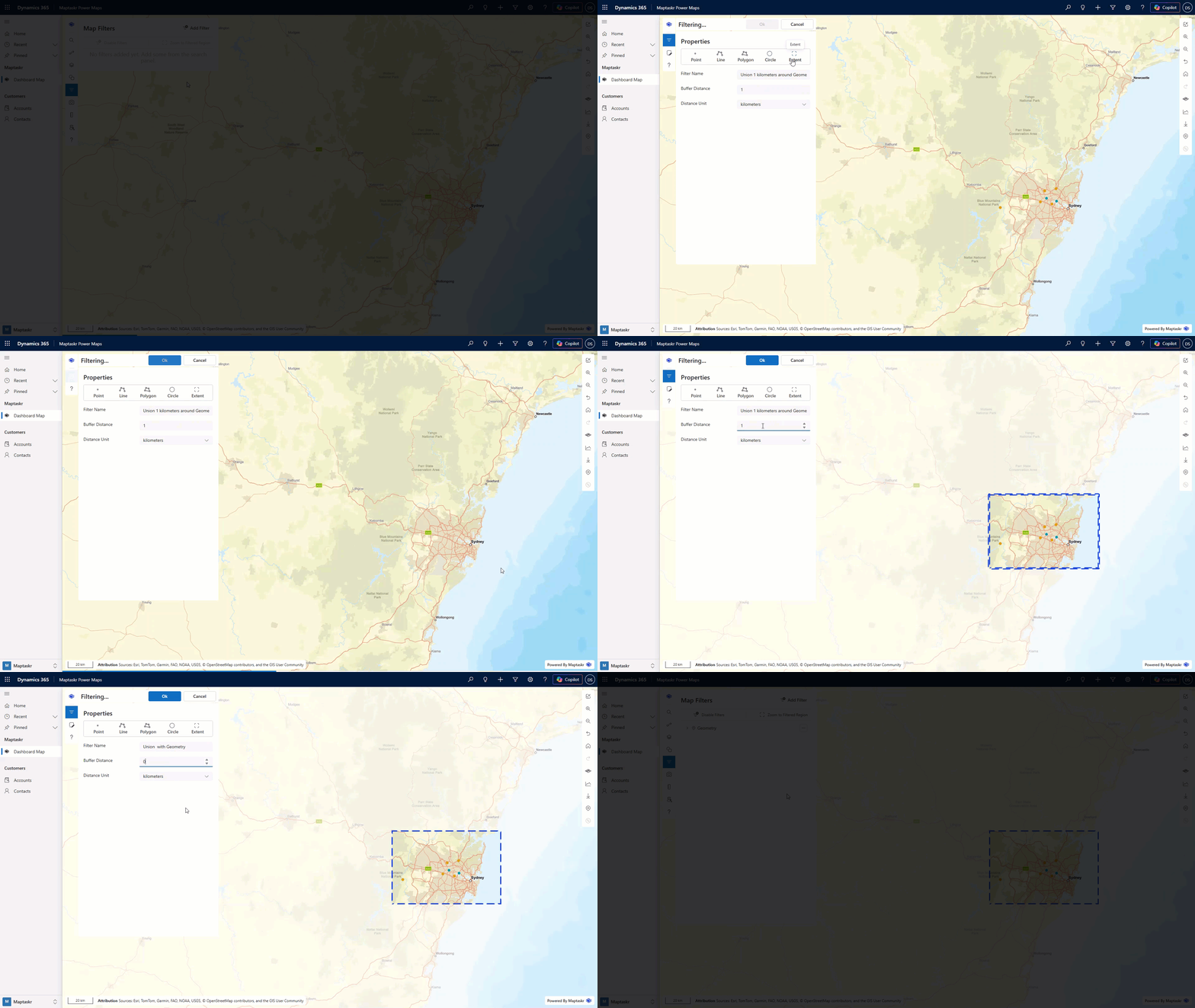
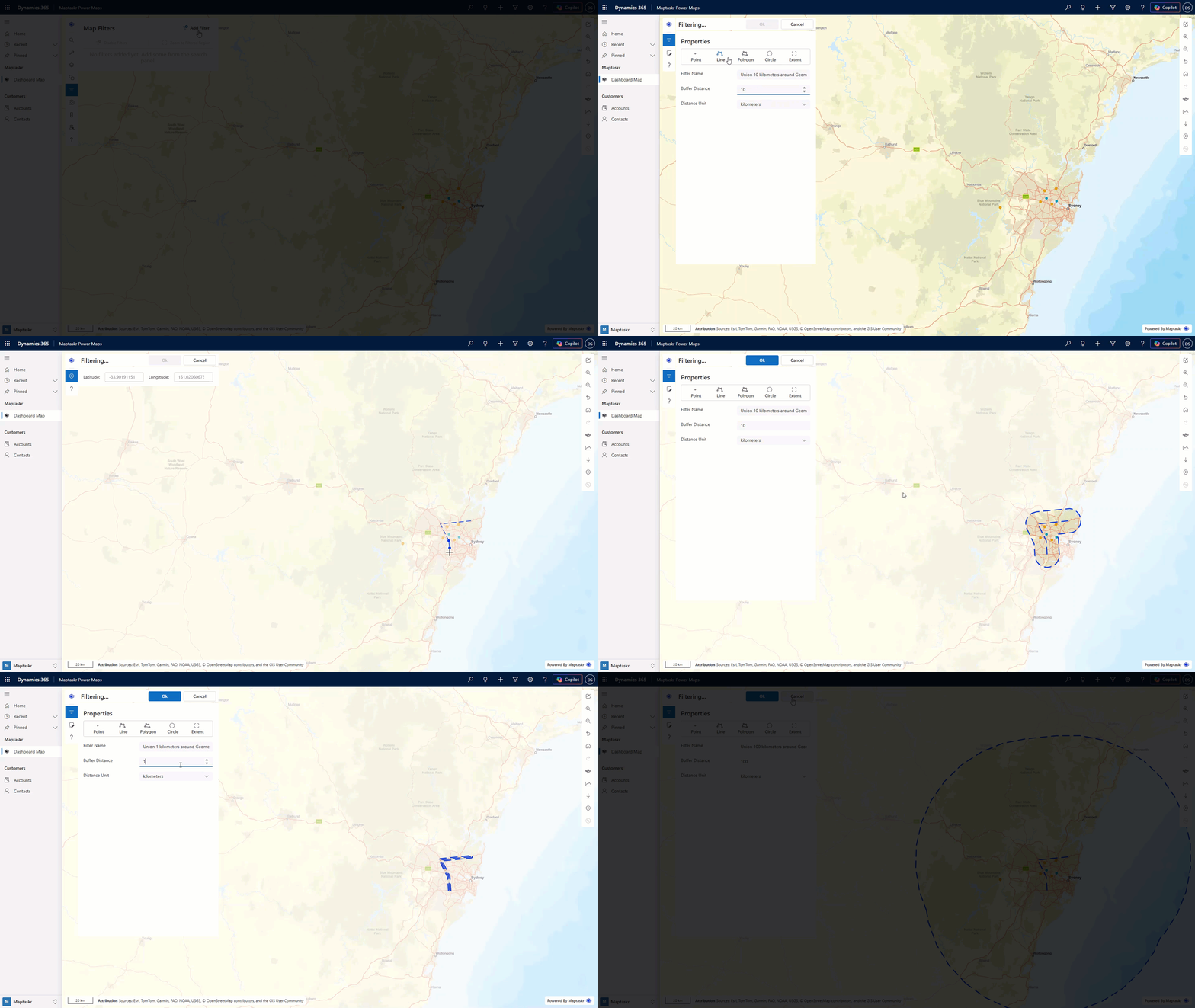
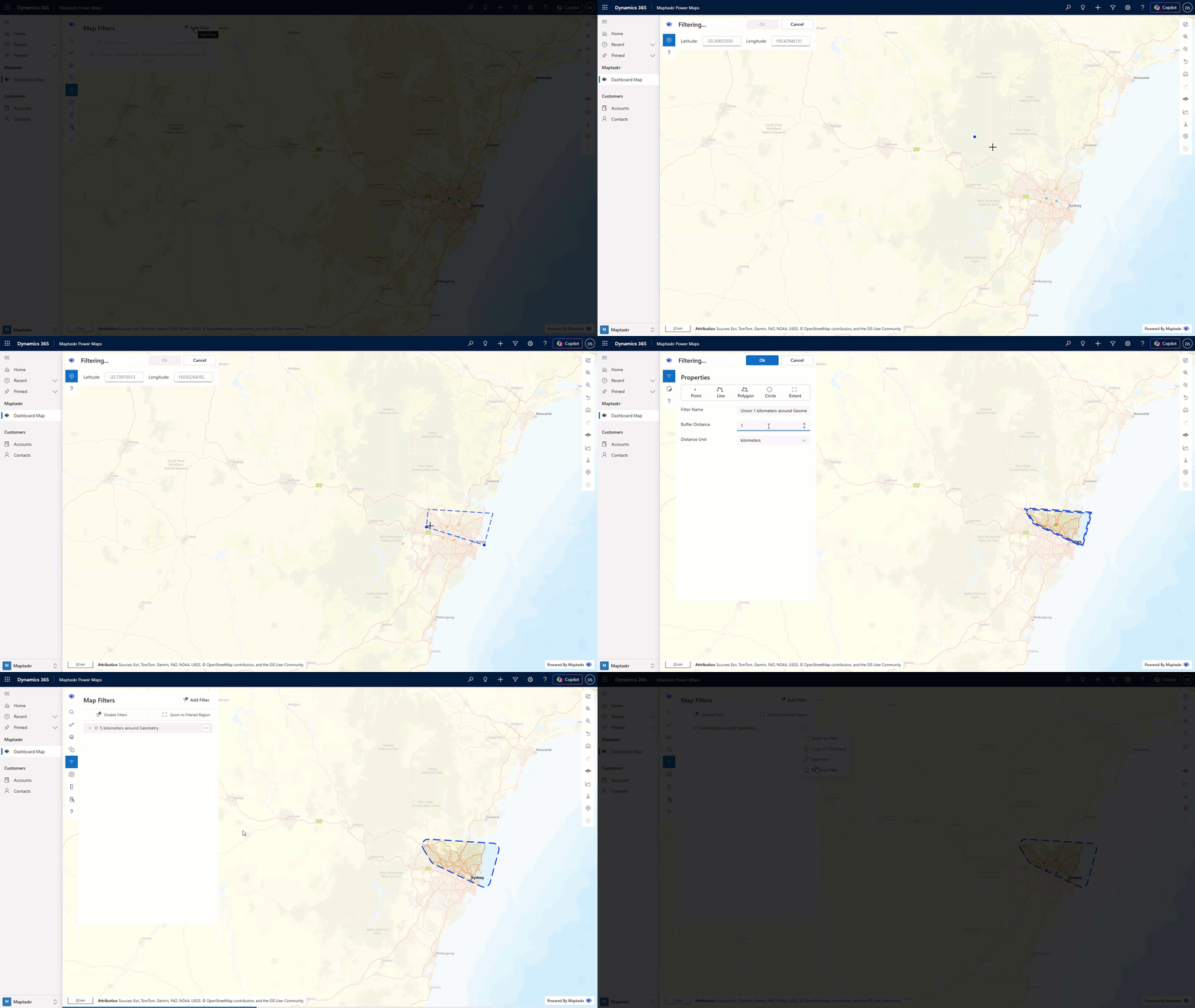
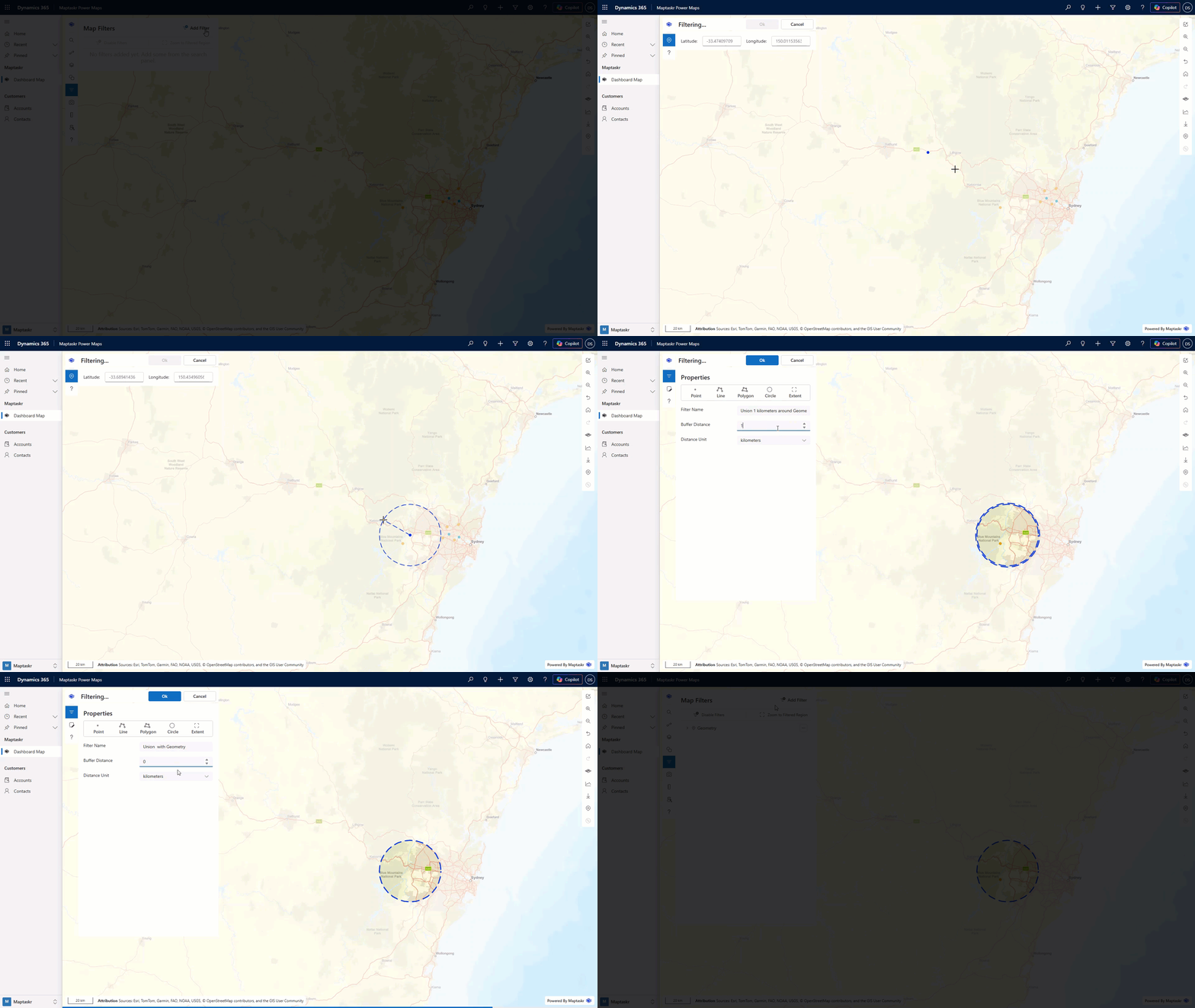
Filter mode lets you add a filter based on drawn geometry such as lines, polygons, circles, points, or extents.
-
Open the filter panel.
-
Click Add Filter.
-
Select a drawing action.
-
Complete the drawing on the map, This can be as many times as required.
-
Adjust the buffer distance and distance unit as needed.
While in Filter mode, users can view the full list of applied filters by opening the main menu panel.
You cannot rename a filter created in Filter mode. The filter name is based on the filter type and what it is attached to.
Examples of different filter types
Filter by Point
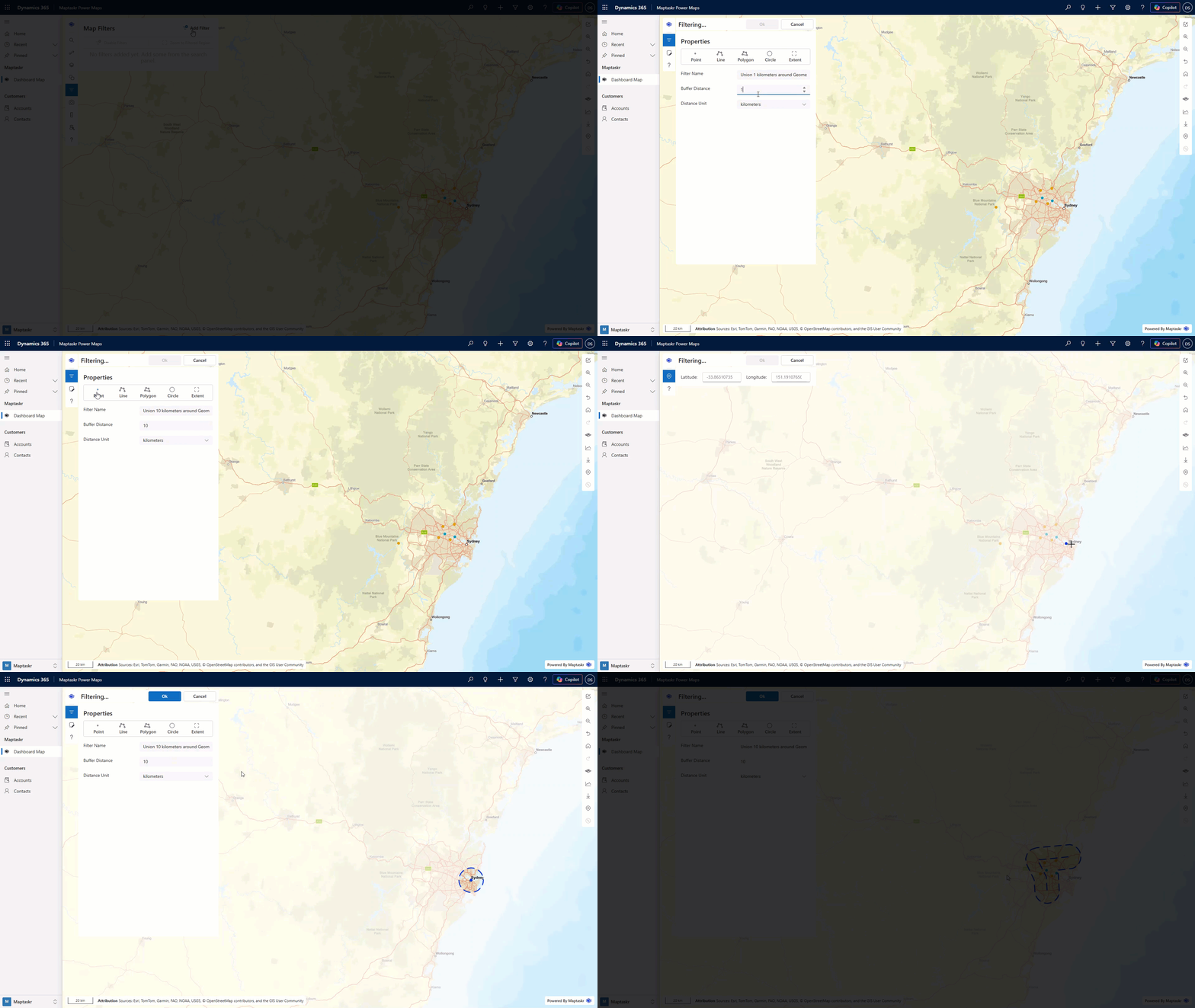
Filter by Line
Filter by Polygon
Filter by Circle
Filter by Extent