Performance Tips
Overview
This page outlines practical steps to keep Maptaskr Power Maps running smoothly, especially in data‑dense environments or when working with many interactive layers.
GPU Acceleration (Windows 11)
You should make sure your browser and Power Apps (if you use the Microsoft Store desktop app) are both configured to use your high‑performance GPU.
Why it matters
Large vector layers, animation, and frequent re‑renders (e.g. when selecting or filtering) benefit significantly from the discrete GPU (e.g. Nvidia) instead of the integrated GPU.
Configure GPU Preference (Windows 11)
-
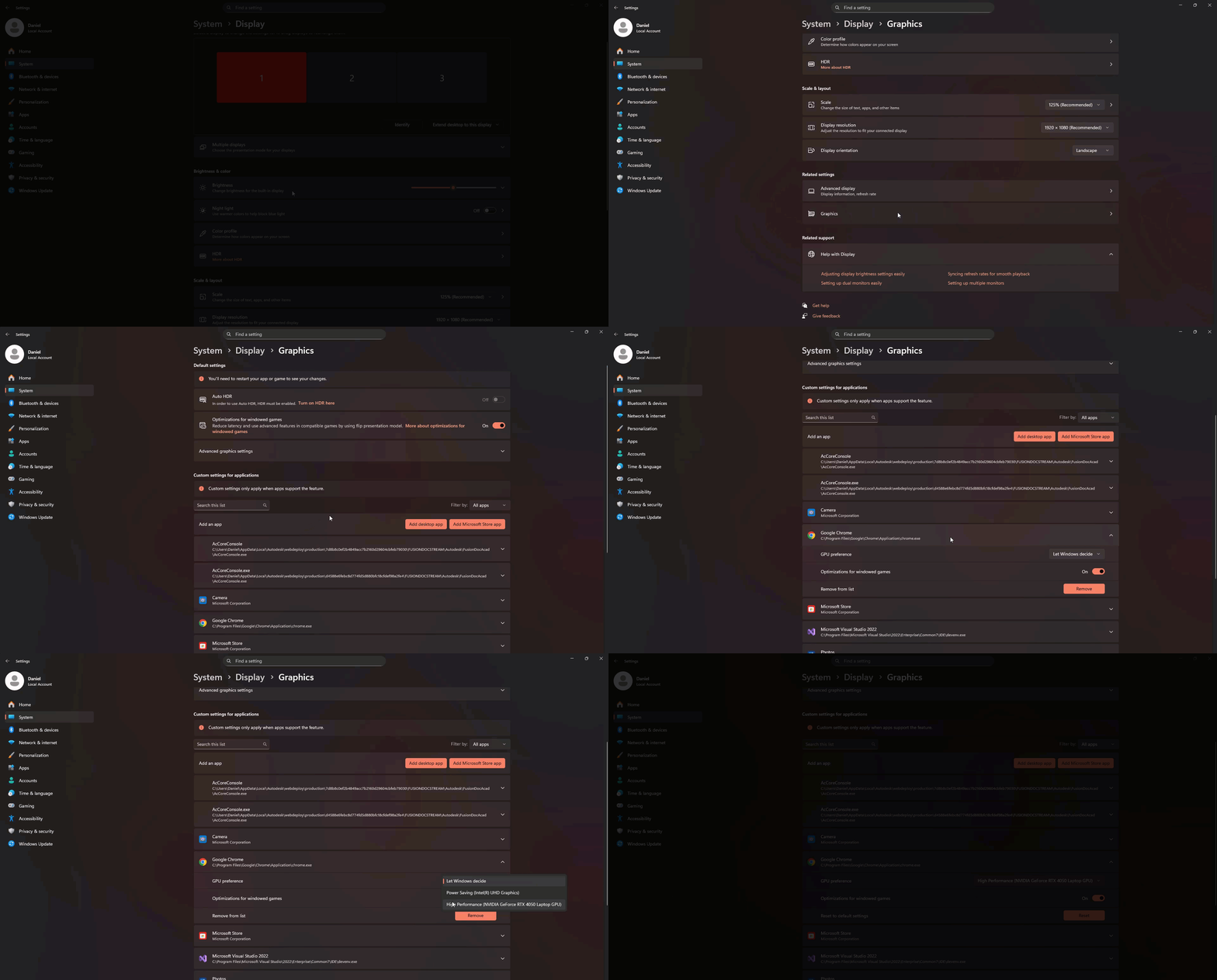
Open Settings → System → Display.
-
Scroll down and click Graphics.
-
In the list, locate each relevant app (e.g. your browser: Edge / Chrome / Firefox, and Power Apps desktop if installed).
-
Select the app → Options → choose High performance (should list your Nvidia GPU) → Save.
-
Repeat for every browser you use with Maptaskr.
-
Restart the app(s) to ensure the change takes effect.
If the app isn’t listed
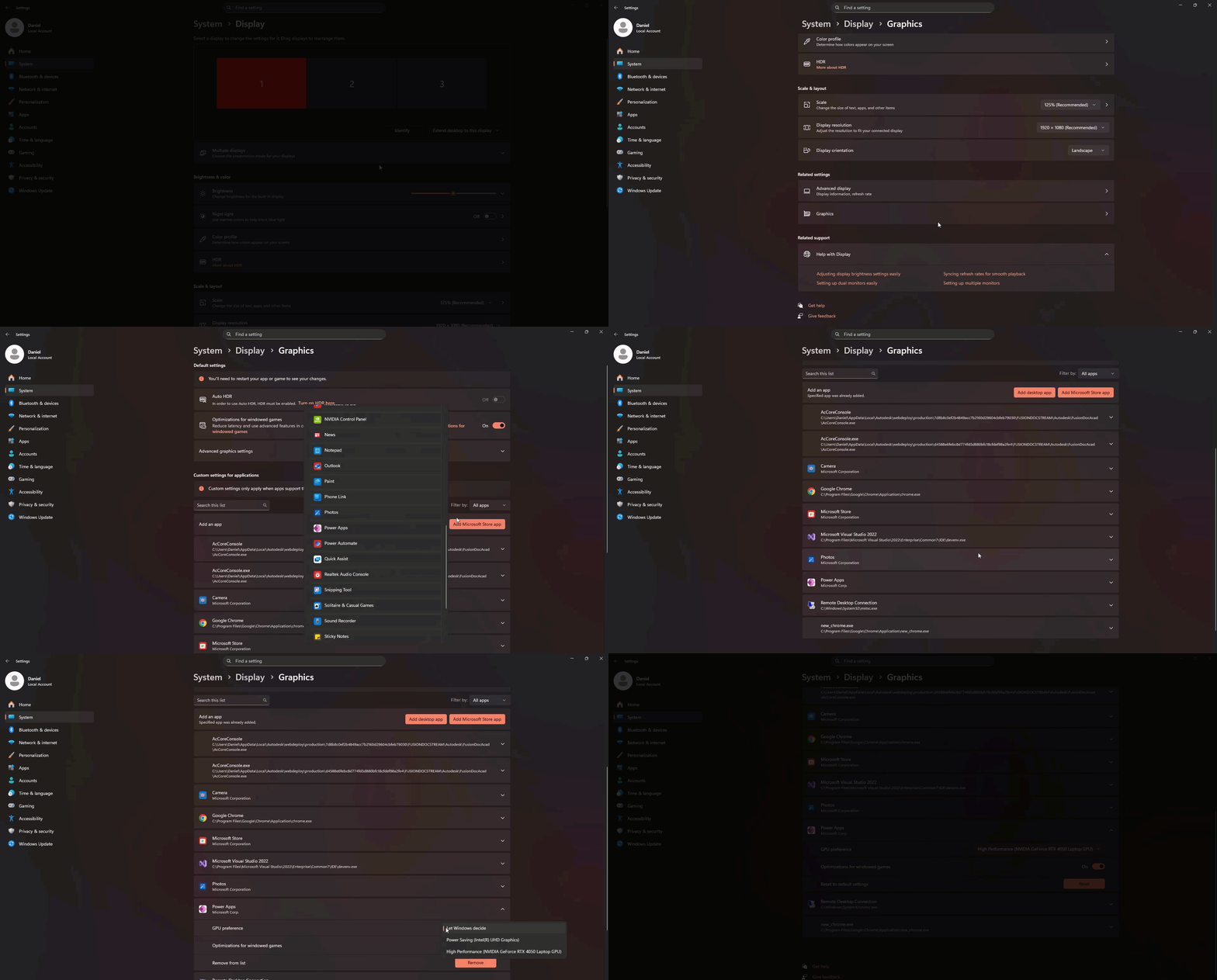
- Click Browse.
- Navigate to the application executable (e.g.
C:\Program Files\Google\Chrome\Application\chrome.exe). - Add it, then set it to High performance as above.
You can confirm GPU usage via the Windows Task Manager → Performance tab → select the discrete GPU and watch utilisation while interacting with the map.
Additional Quick Wins (Coming Soon)
Upcoming sections will cover:
- Layer batching & geometry simplification
- Efficient use of clustering & heatmaps
- Token / attribute pruning
- Caching strategies & request minimisation
- Browser memory management tips
More optimisation guidance will be added incrementally.