OAuth Layer Authentication
This tutorial will guide you through authenticating an ArcGIS feature layer using OAuth 2.0. You'll learn how to set up OAuth authentication to access protected ArcGIS layers that require user login credentials.
Use Case Context: Authenticate a Protected ArcGIS Layer
In this tutorial, we'll walk through the process of accessing an ArcGIS feature layer (Feature Service) that requires authentication. This is commonly needed when working with private or organization-specific layers hosted on ArcGIS Online or ArcGIS Enterprise that require users to have proper Esri login credentials.
Prerequisites
Before you begin, make sure you have completed the following steps:
- ArcGIS Hosted Layer - You need the URL for your hosted layer that requires authentication. (Learn more) This layer URL will also need to be added to your OAuth configuration.
- ArcGIS OAuth 2.0 Configuration - You must configure OAuth 2.0 credentials in ArcGIS and obtain the client ID. (Learn more)
By the end of this tutorial, you'll be able to:
- Create or configure an OAuth authentication profile in Maptaskr.
- Add protected ArcGIS layers to your Layer Gallery using OAuth authentication.
- Successfully authenticate and display protected ArcGIS content in your maps.
Step 1: Create or Configure OAuth Authentication Profile
The OAuth authentication profile setup depends on your Maptaskr installation type. Choose the method that applies to your situation:
Option A: Fresh Install of Release 1
If you have a brand new, fresh installation of Maptaskr Release 1 or newer, the required OAuth profile is already pre-configured for you.
-
Navigate to Auth Manager in the Advanced section.
-
Look for the pre-built profile called "ArcGIS Online (Authorization code with PKCE)".
-
Open this profile and navigate to the Auth Request Details tab.
-
Locate both sections where
{{clientid}}is used (Authorization Endpoint and Token Request Body) and replace it with your client ID from the prerequisite step ArcGIS OAuth 2.0 Configuration. -
Click Save to save your profile.
Option B: Manual Creation (For Upgrades or Custom Setups)
If you're upgrading from an earlier version or need to create the profile manually:
-
Navigate to Auth Manager in the Advanced section.
-
Click Add New Profile.
-
On the Auth Details tab, configure the basic settings:
- Auth Profile Name:
ArcGIS Online (Authorization code with PKCE)(or your preferred name) - Additional URL Parameters: Add the following parameter:
Name Value Notes token{{access_token}}Enter exactly as shown (including the curly braces) - Auth Profile Name:
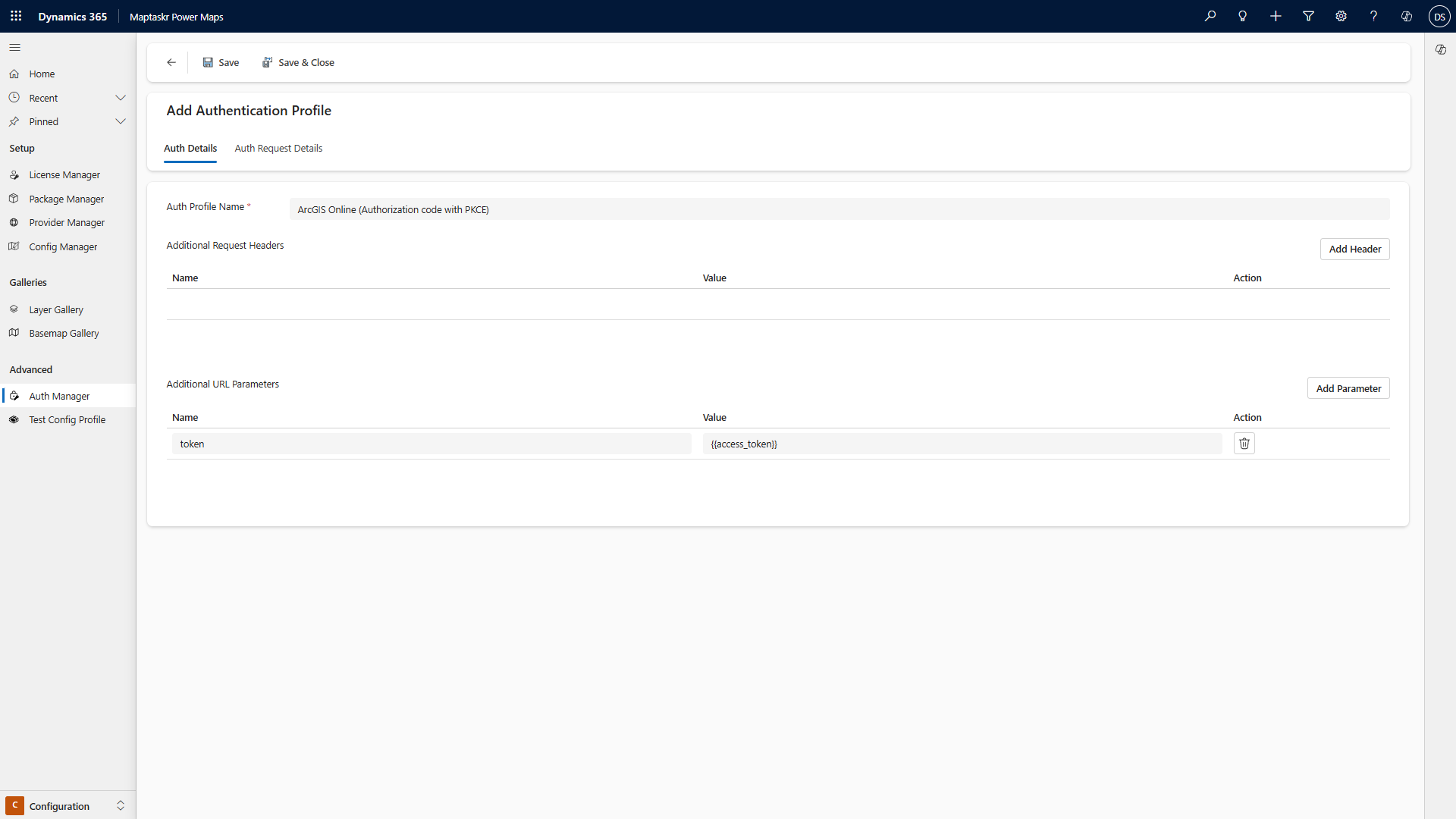
-
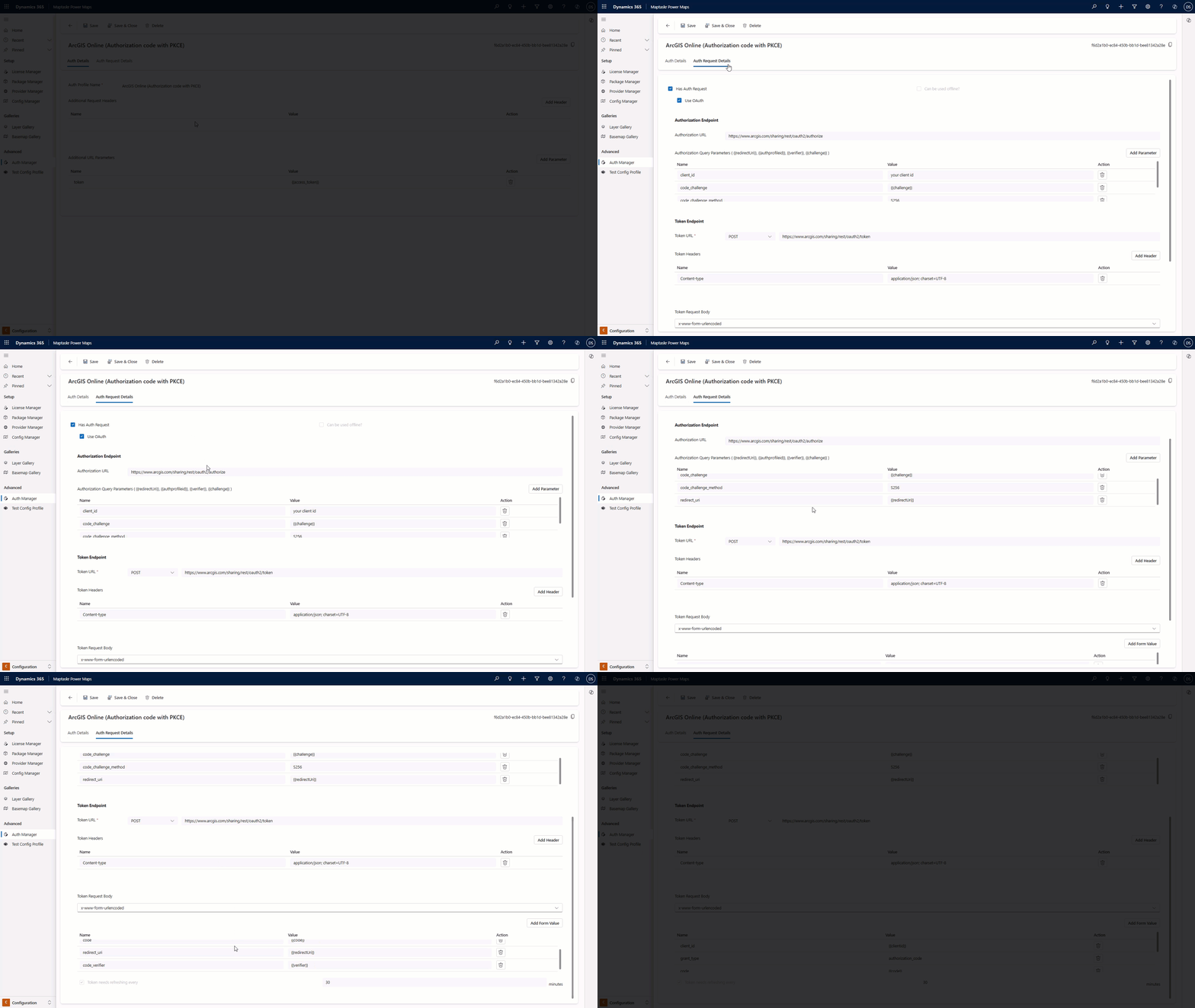
Now switch to the Auth Request Details tab and configure the OAuth settings:
- Check Has Auth Request checkbox
- Check Use OAuth checkbox
-
Configure the Authorization Endpoint section:
- Authorization URL:
https://www.arcgis.com/sharing/rest/oauth2/authorize - Authorization Query Parameters: Add the following parameters:
Name Value Notes client_id{{client_id}}This is your Client ID from the prerequisites code_challenge{{challenge}}Enter exactly as shown (including the curly braces) code_challenge_methodS256response_typecodeexpiration20160 - Authorization URL:
-
Configure the Token Endpoint section:
- Token URL: Select
POSTand enter:https://www.arcgis.com/sharing/rest/oauth2/token - Token Headers: Add the following header:
Name Value Content-Typeapplication/json; charset=UTF-8 - Token URL: Select
-
Configure the Token Request Body section (x-www-form-urlencoded): Add the following parameters:
Name Value Notes client_id{{client_id}}This is your Client ID from the prerequisites grant_typeauthorization_codecode{{code}}Enter exactly as shown (including the curly braces) redirect_uri{{redirectUri}}Enter exactly as shown (including the curly braces) code_verifier{{verifier}}Enter exactly as shown (including the curly braces) -
Configure the token refresh settings:
- Set Token needs refreshing every to match your business requirements (value in minutes, e.g., 1440 for 24 hours, 10080 for 7 days)
Token Expiration ImpactWhen the token refresh timeout expires, the authentication table will clear all approved authentications. This means all users who want to access this layer will need to authenticate again with their ArcGIS credentials.
Consider your users' workflow when setting this timeout - shorter periods provide better security but require more frequent re-authentication.
-
Click Save to save your profile.
Option C: Import from ZIP File (For Upgrades)
If you're upgrading and prefer to import the pre-configured profile:
-
Download the OAuth profile ZIP file from Maptaskr Resources.
-
Navigate to Package Manager in the Maptaskr Power Maps Admin application.
-
Click Import Configuration.
-
Select the downloaded ZIP file (This will trigger the import process).
-
Navigate to the Authentication Manager to verify that the "ArcGIS Online (Authorization code with PKCE)" profile has been imported successfully.
-
Open this profile and navigate to the Auth Request Details tab.
-
Locate both sections where
{{clientid}}is used (Authorization Endpoint and Token Request Body) and replace it with your client ID from the prerequisite step ArcGIS OAuth 2.0 Configuration. -
Click Save to save your profile.
Step 2: Add Your Protected Layer
Now that you have your OAuth authentication profile configured, you can add your protected ArcGIS layer to the Layer Gallery.
-
Navigate to the Layer Gallery.
-
Click Add Layer.
-
Configure your layer with the following settings:
- Layer Type: Select the layer type
- Layer Group: Select the group this layer should sit within
- Service URL: Enter the URL of your protected ArcGIS feature layer
- Authentication Profile: Select "ArcGIS Online (Authorization code with PKCE)" (or the name you used if created manually)
-
Click Query. This will trigger a page redirect (this will open in a new page) which will first take you to an authentication validation page, then will redirect you to the ArcGIS login page for authentication. Please enter your username and password, then click Allow.
-
Once authentication is successful, you will be redirected back to the Add layer page and the console log will display a successful query.
-
Complete the remaining layer configuration settings as needed for your specific layer.
-
Click Save Layer.

For detailed steps on adding layers, refer to the Adding a Layer guide.
Step 3: Test Your OAuth Authentication
-
Create a new map profile or edit an existing one where you want to use your protected layer.
-
Go to the Preloaded Layers tab in your profile. Note: This doesn't have to be a preloaded layer - this can also be a layer that a user can add from the gallery.
-
Click Add Layer and select your newly added protected layer from the gallery.
If the user adding this layer to the preloaded layers tab is different from the person who created the layer or their authentication token has expired, they will also need to authenticate with their ArcGIS credentials.
What happens during authentication:
- Adding the layer will trigger the OAuth authentication process
- A new tab will open for authentication validation
- You'll be redirected to the ArcGIS login page
- After entering your credentials and clicking Sign in, you'll be redirected back to the preloaded layers tab
- The layer will be successfully added to your preloaded layers list
This ensures that each user has proper access permissions to the protected layer.
If a user has authenticated and their authentication token has not expired, then they will have no interrupted workflow when adding, viewing, and interacting with the authenticated layer.
-
Save your profile configuration.
-
Navigate to where your map profile is used (dashboard or record form).
-
When the map loads, you should be prompted to authenticate with your ArcGIS credentials if you haven't already authenticated and your authentication token hasn't expired.
-
After successful authentication, your protected layer should display on the map. Otherwise, it won't be added to the map.
Authentication Flow in Action
Once configured, here's what users will experience:
-
Initial Load: When a user first accesses a map containing your protected layer, they will see an authentication prompt.
-
OAuth Login: Users will be redirected to ArcGIS Online to enter their credentials securely.
-
Authorization: After successful login, users will be redirected back to Maptaskr with the necessary tokens.
-
Layer Access: The protected layer will now load and display on the map with full functionality.
-
Token Management: Maptaskr handles token refresh automatically, so users won't need to re-authenticate frequently.
Troubleshooting Common Issues
Layer Not Loading:
- Verify that your OAuth Client ID is correct and matches the one configured in ArcGIS.
- Ensure the layer URL is accessible and correctly formatted.
- Check that your authentication profile settings match the ArcGIS OAuth configuration.
Authentication Loop:
- Verify that your redirect URLs in ArcGIS OAuth settings include your Maptaskr domain.
- Ensure PKCE is enabled if using the recommended authentication method.
Permission Denied:
- Confirm that the authenticating user has appropriate permissions to access the layer in ArcGIS.
- Check that the layer is shared with the appropriate users or groups in ArcGIS Online.
For additional support with OAuth configuration, contact the Maptaskr support team with your specific error messages and configuration details.