Maptaskr Shapes
Overview
Maptaskr Shapes are used to persist shapes drawn on the map and associate them with a Dataverse record. Each shape consists of two parts:
- GeoJSON representation — the editable geometry stored in WGS84 (latitude/longitude). This is what Maptaskr renders and allows users to modify on the map.
- Original uploaded file (optional) — if the shape originated from an uploaded file (e.g. Shapefile, KML, GeoJSON in a different projection), the original is preserved untouched in its native projection.
For a list of what files we support Learn more
This separation ensures you always retain the source data at full precision while still providing a standardised format for display and editing.
What is saved where?
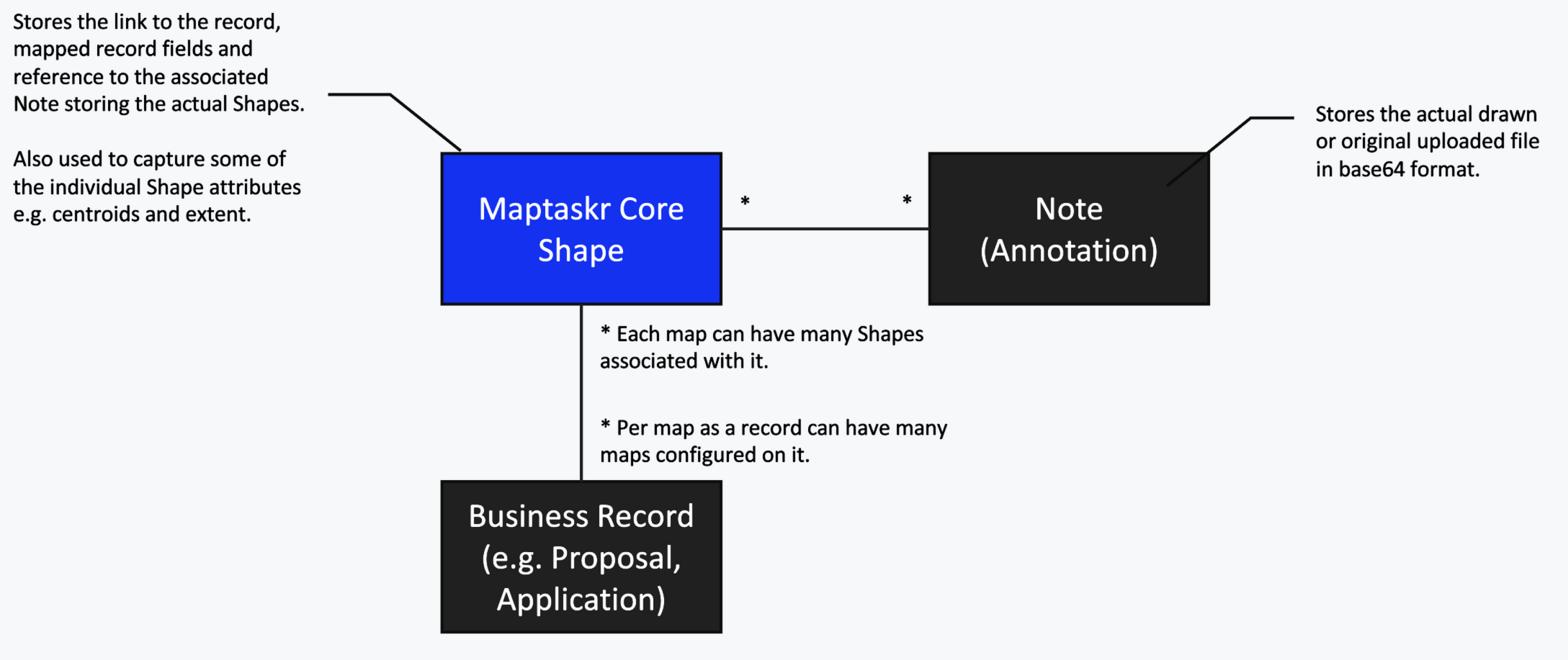
When you add a Maptaskr PCF map control to a Dataverse form, shapes drawn or uploaded on that map are saved against the current record. Each shape record stores:
| Identifier | Purpose |
|---|---|
| Related Entity Type | The logical name of the entity the shape belongs to. |
| Related Entity ID | The unique ID of the specific record the shape belongs to. |
| Related Entity Field | The form field name used by the PCF map control — this ties the shape to a specific map instance on the form. |
Because shapes are linked via the field name, you can add multiple maps to the same form (or across multiple forms) and each map will only load and edit its own shapes. There is no limit to how many map controls can be associated with a single record, as long as each one references its own dedicated field to store shape IDs.
Maptaskr Core Shapes table
| Column Name | Logical Name | Data Type | Usage |
|---|---|---|---|
| CentroidLatitude | mtrcore_CentroidLatitude | Decimal | Centroid Latitude of the GeoJSON File |
| CentroidLongitude | mtrcore_CentroidLongitude | Decimal | Centroid Longitude of the GeoJSON File |
| GeoJSON File | mtrcore_GeoJSONFile | Single line of text | The "attachment/note" Id containing the Base64 encoded GeoJSON file. |
| GeoModel File | mtrcore_GeoModelFile | Single line of text | Unused at present. |
| MaxLatitude | mtrcore_MaxLatitude | Decimal | The Max Latitude of the GeoJSON File (used for extent testing) |
| MaxLongitude | mtrcore_MaxLongitude | Decimal | The Max Longitude of the GeoJSON File (used for extent testing) |
| MinLatitude | mtrcore_MinLatitude | Decimal | The Min Latitude of the GeoJSON File (used for extent testing) |
| MinLongitude | mtrcore_MinLongitude | Decimal | The Min Longitude of the GeoJSON File (used for extent testing) |
| Name | mtrcore_Name | Single line of text | The Name of the Shape (usually consistent with the Map Shape name) |
| OrigModel File | mtrcore_OrigModelFile | Single line of text | Unused at present. |
| OrigShape File | mtrcore_OrigShapeFile | Single line of text | The "attachment/note" Id containing the Base64 encoded original uploaded shape file (in whatever format was uploaded). |
| Predefined Id | mtrcore_PredefinedId | Single line of text | The Map Shape ID — used to link it to a preconfigured shape definition. |
| Related Entity Field Name | mtrcore_RelatedEntityFieldName | Single line of text | The name of the Field used by the Map PCF that this shape was created in. This map will be the only map to load the shape for editing purposes. |
| Related Entity ID | mtrcore_RelatedEntityID | Single line of text | The ID of the related entity this shape belongs to. |
| Related Entity Type | mtrcore_RelatedEntityType | Single line of text | The Type of the related entity this shape belongs to. |
| Uploaded By | mtrcore_UploadedBy | Single line of text | Unused at present. |
This is supplemented by the following standard fields:
| Column Name | Logical Name | Data Type | Usage |
|---|---|---|---|
| Created By | createdby | Lookup | User who created the shape |
| Created By (Delegate) | createdonbehalfby | Lookup | Delegate service user who created the shape (if created by a service account) |
| Created On | createdon | Date and Time | Date and time the shape was created |
| Modified By | modifiedby | Lookup | User who modified the shape last |
| Modified By (Delegate) | modifiedonbehalfby | Lookup | Delegate service user who modified the shape last (if modified by a service account) |
| Modified On | modifiedon | Date and Time | Date and time the shape was last modified |
- The OrigShape file saved will NOT be altered with the GeoJSON editing facilities.
- Disable editing facilities, and use the file contained within this field if you want to ensure absolute precision when accepting shape files.
- Any modified GeoJSON will be in the WGS84 coordinate space, and may introduce precision errors if not handled correctly.
Base64 Attachments
Shape geometry is not stored directly on the Maptaskr Core Shapes record. Instead, the actual file content is saved as a Base64-encoded attachment (Dataverse Note / annotation), and the shape record holds a reference (the annotation ID) in the relevant field.
Two attachments may exist per shape:
| Field | Attachment content |
|---|---|
mtrcore_GeoJSONFile | Base64-encoded GeoJSON (WGS84). This is the editable representation used by the map. |
mtrcore_OrigShapeFile | Base64-encoded original uploaded file in its native format and projection. Preserved as-is. |
Example: GeoJSON attachment (decoded)
Maptaskr uses an extended version of the Mapbox simplestyle-spec to store per-feature styling directly in GeoJSON properties. These properties control how the shape is rendered on the map.
{
  "type": "FeatureCollection",
  "features": [
    {
      "type": "Feature",
      "geometry": {
        "type": "Polygon",
        "coordinates": [
          [
            [144.9631, -37.8136],
            [144.9641, -37.8136],
            [144.9641, -37.8126],
            [144.9631, -37.8126],
            [144.9631, -37.8136]
          ]
        ]
      },
      "properties": {
        "title": "Sample Area",
        "fill": "#0078d4",
        "fill-opacity": 0.5,
        "stroke": "#FFFFFF",
        "stroke-opacity": 1,
        "stroke-width": 2,
        "stroke-type": "Solid",
        "text-color": "#000000",
        "text-opacity": 1,
        "text-shadow": "#FFFFFF",
        "text-shadow-opacity": 1,
        "font-size": 14
      }
    }
  ]
}
simplestyle-spec property reference
| Property | Type | Default | Description |
|---|---|---|---|
fill | String | #0078d4 | Fill colour (hex). Applies to polygons and point circles. |
fill-opacity | Number | 1 | Fill opacity (0 – 1). |
stroke | String | #FFFFFF | Stroke/border colour (hex). Applies to lines and polygon edges. |
stroke-opacity | Number | 1 | Stroke opacity (0 – 1). |
stroke-width | Number | 1 | Stroke width in pixels (max 64). |
stroke-type | String | Solid | Stroke dash style. One of Solid or Dashed. |
text-color | String | #000000 | Label text colour (hex). |
text-opacity | Number | 1 | Label text opacity (0 – 1). |
text-shadow | String | #FFFFFF | Text halo/shadow colour (hex) for readability against the map. |
text-shadow-opacity | Number | 1 | Text shadow opacity (0 – 1). |
font-size | Number | 14 | Label font size in pixels. |
title | String | — | Text displayed as a label on the feature. |
Using Saved Shapes as Layers
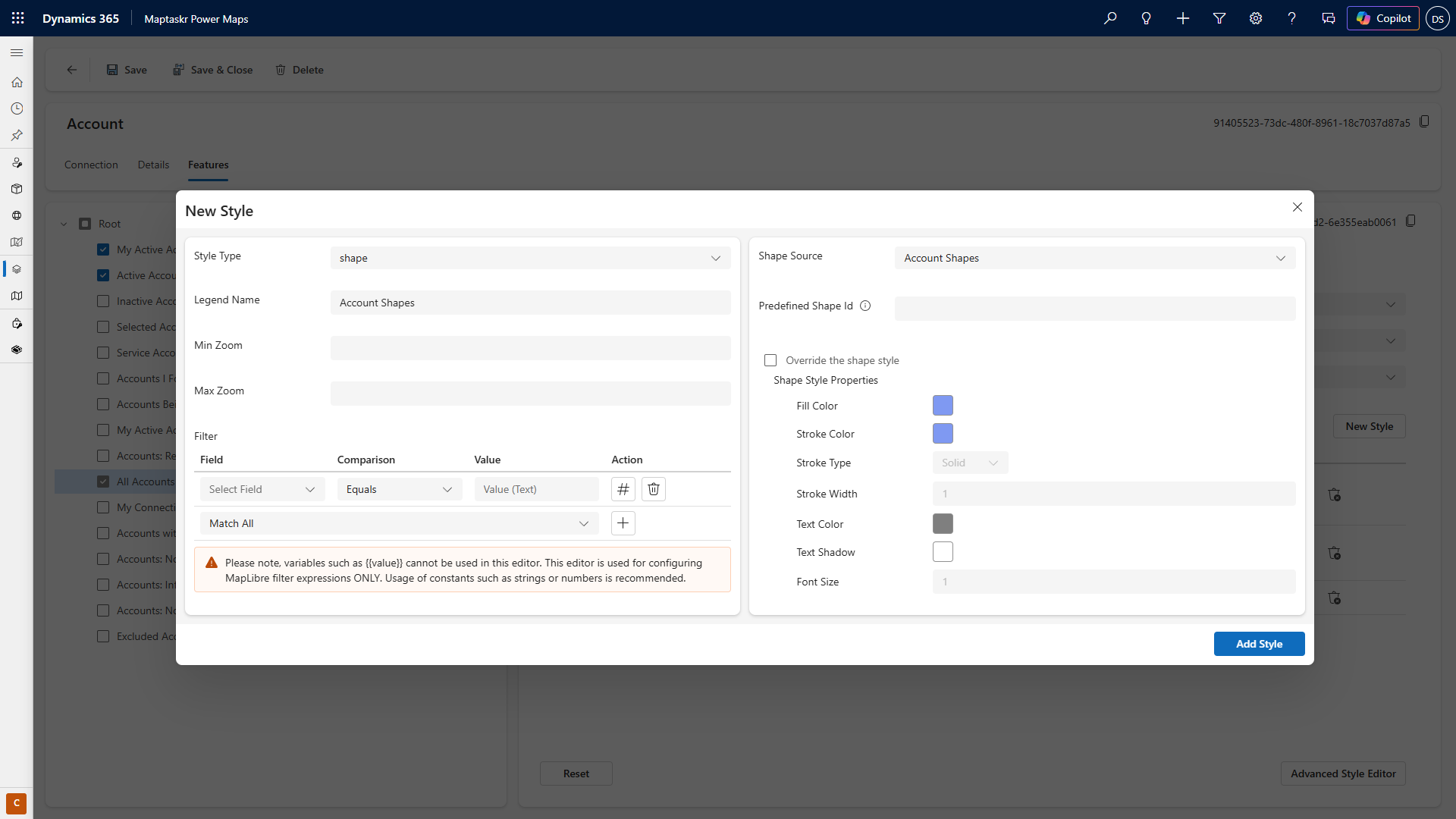
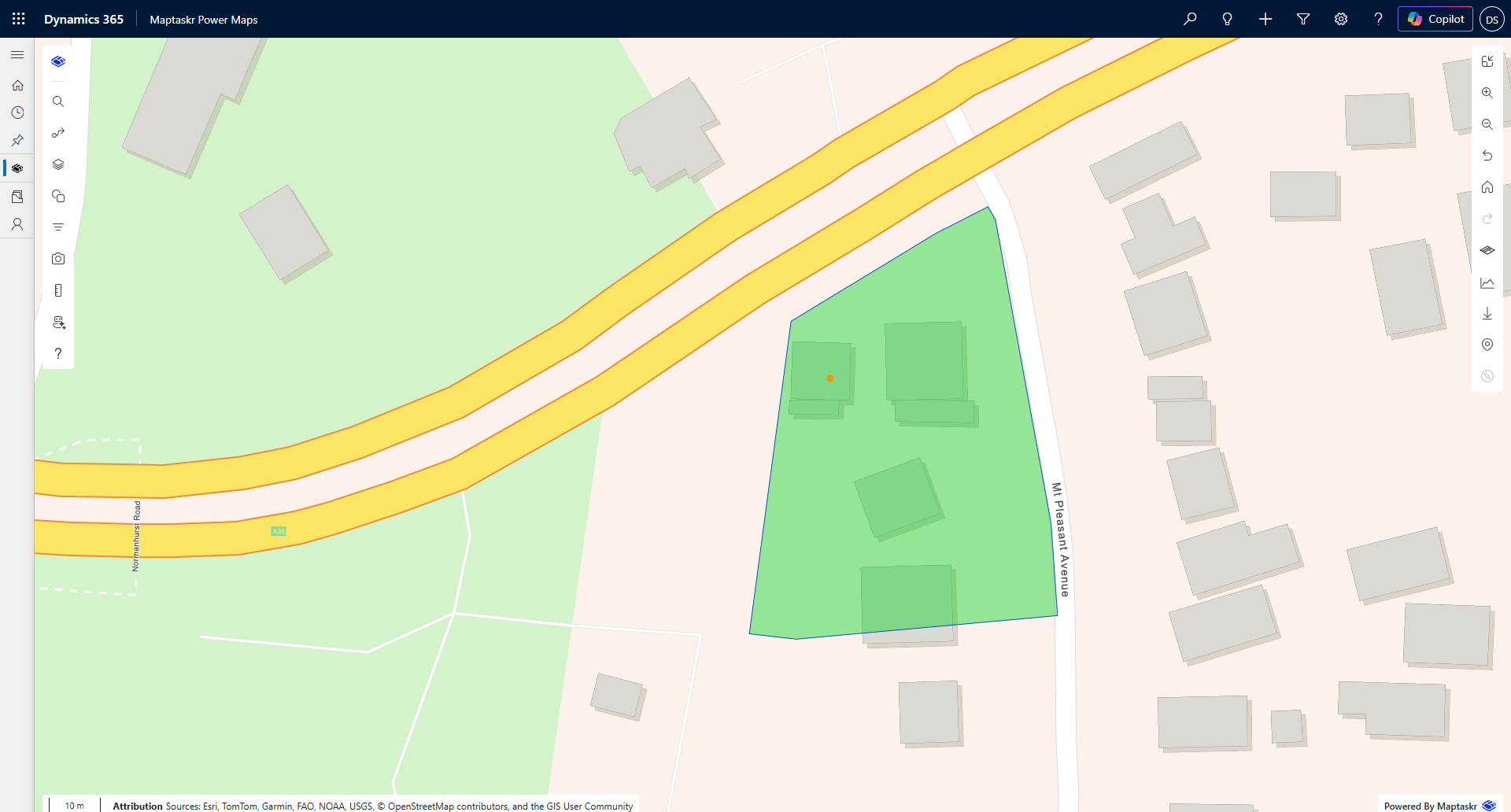
When a Dataverse record has a saved shape, you can use that record as a Dataverse layer and apply a shape style to render the geometry on the map.
How it works
- The Dataverse layer loads records from the target entity.
- A shape style is applied to the layer, telling Maptaskr which field contains the shape references.
- Maptaskr fetches the GeoJSON attachments and renders the geometries on the map.
The shape style can be configured to reference any of the form fields that contain shape IDs. You can use saved shape styles from the configuration, or override the style per-layer for a more consistent visual approach across different map instances.
Any Dataverse record with a shape must have a latitude/longitude field to allow it to be rendered as a layer and to have its shapes loaded. If you don't otherwise need a coordinate field, you can set it to the shape's centroid on save and then hide it when creating the Dataverse layer configuration.
Adding a shape style to a Dataverse layer
-
Open the Layer Configuration for your Dataverse layer.
-
Navigate to the Shape Style section.
-
Select the form field that contains the shape IDs you wish to render.
-
Choose a style preset from the saved styles, or configure a custom style (fill colour, stroke, opacity, etc.).
-
Save the layer configuration.
Best Practice for Shape Persistence
-
Persist shapes only for as long as you need them. If shapes are transient or used only during a workflow stage, consider cleaning them up when no longer relevant. Orphaned shape records increase storage usage and may slow layer queries over time.
-
Offload to an Enterprise GIS for long-term storage. If your organisation has access to a system such as ArcGIS, consider building a process that validates uploaded shapes and publishes them as authoritative features in that system. Once published, the Dataverse shape record can be removed to free storage, and the record can instead render the official GIS layer. This also makes the geometry accessible to other platforms and teams outside of Dynamics 365.
-
Preserve the original file when precision matters. If your workflow requires sub-metre accuracy or specific coordinate systems, always reference the OrigShape file rather than the WGS84 GeoJSON, which may have reprojection artefacts.
-
Separate maps by field name. When multiple maps exist on a form, ensure each PCF control references a distinct field. This guarantees shapes are scoped correctly and avoids accidental cross-map edits.