Add a Map to a Form
Form maps keep location context next to the record a user is editing. They are ideal for Accounts, Contacts, Work Orders, or any custom table where users need to inspect a single location while updating data.
Prerequisites
- A
Shapestext column on the table that will host the map control. - The
MaptaskrPowerMapPCFcontrol deployed in your environment. - A published configuration profile in the Maptaskr Config Manager.
note
The walkthrough uses the Account main form as an example. Repeat the same steps on whichever table and form your scenario requires.
Add the map control to the form
-
Go to make.powerapps.com.
-
Open the form where the map control should appear.
-
Select Components → More components.
-
Check whether Maptaskr components already exist:
- If not, choose Get more components.
-
Search for
MaptaskrPowerMapPCFand add it.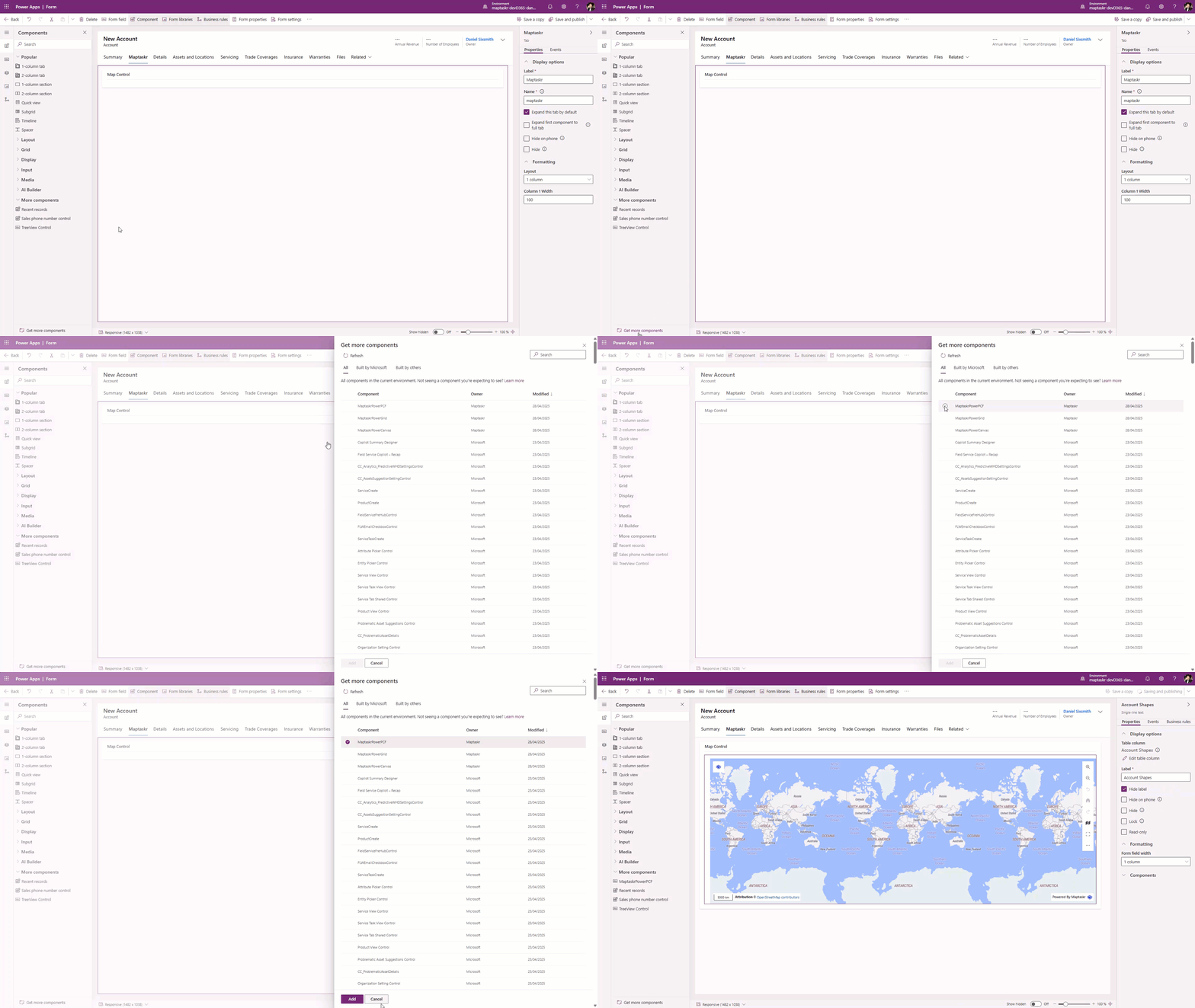
-
Select the newly added component.
-
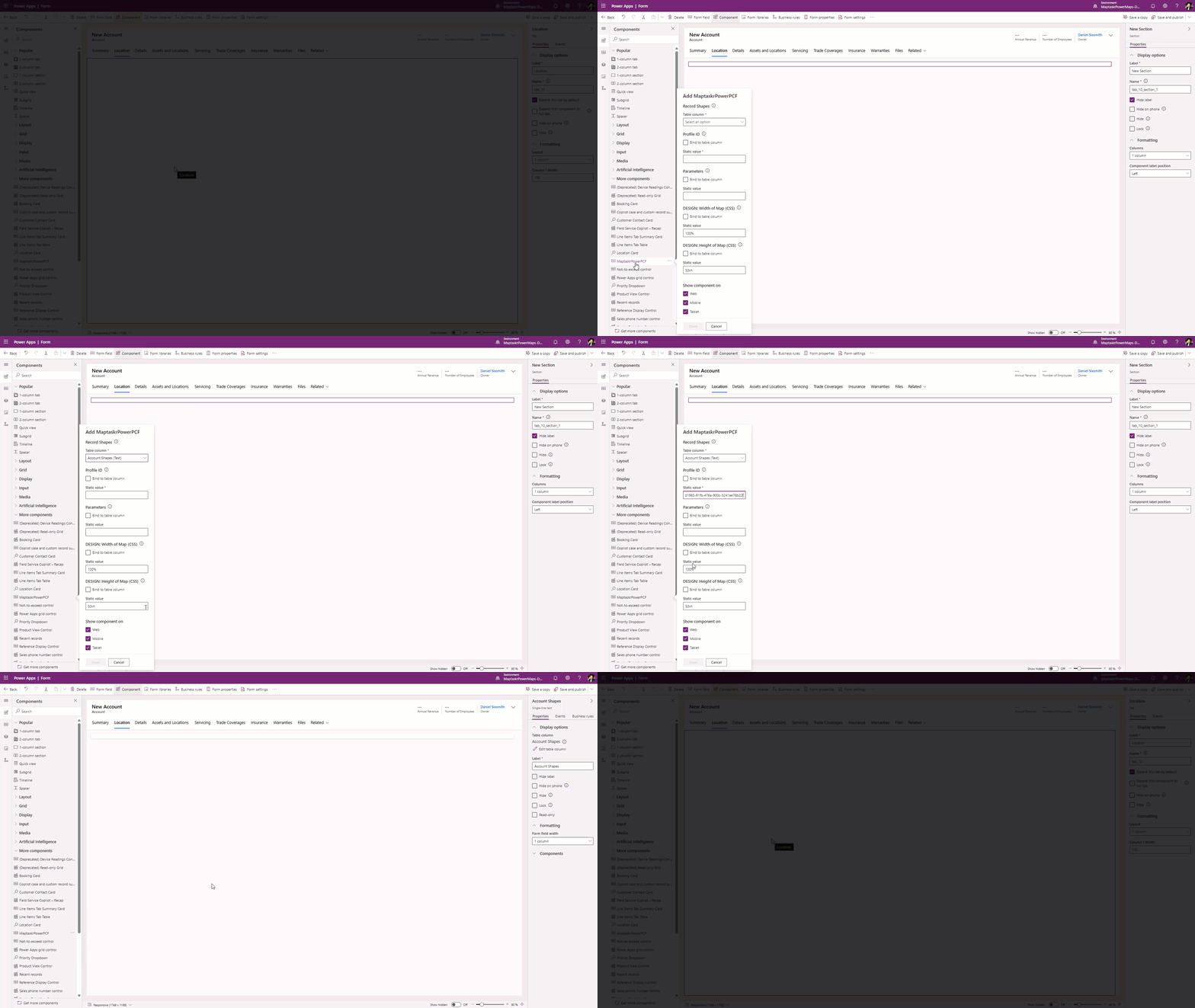
Configure the map settings:
| Field | Description |
|---|---|
| Table Column | The column where shapes are stored. Create a text field named [Table Name] Shapes, add it to any table that needs a map, and bind the PCF control to it. |
| Profile ID | Copy the ID from your configuration profile (top-right of the Config Manager). |
| Parameters | Use to send provider-specific filters (optional). |
| Design Width & Height | Override default sizing with CSS values when needed. |
-
Hide the field label to keep the form tidy.
-
Save and publish the form so makers and end users can see the map.
Next steps
- Add business rules or form scripts to automatically write shapes based on address fields.
- Duplicate the configuration for other tables that need map context.