Add a map to a Canvas Page
Canvas pages give you pixel-level control over the UI, making them perfect for mobile-first, task-specific, or partner-facing scenarios. Use this guide to drop the MaptaskrPowerCanvas component into any canvas screen.
Prerequisites
- Maker access to create a Canvas Page.
- The
MaptaskrPowerCanvascomponent available in your environment. - A Maptaskr configuration profile with the layers you want to expose.
Add the component
-
Go to make.powerapps.com.
-
Confirm you are in the correct environment (Located in the top right corner of the page).
-
Select Solutions from the main navigation
-
Select your preferred solution.
-
using the action buttons at the top of the page, click New then open the drop down for apps and click Page.
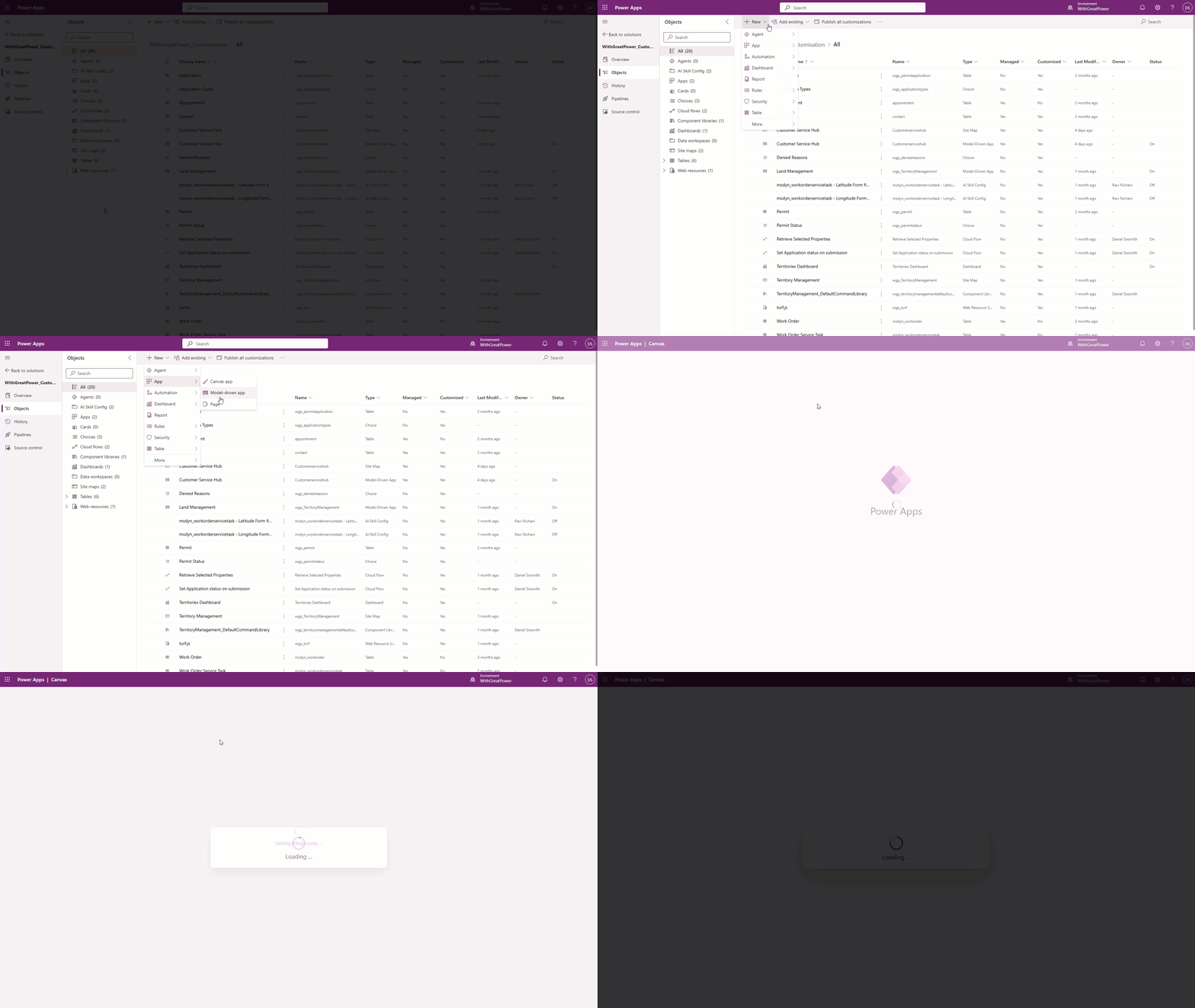
-
Once your canvas page loads, select Insert in the left navigation.
-
Expand Code components and choose MaptaskrPowerCanvas.
tipDon’t see it listed? Click the folder icon labelled Get more components, switch to the Code tab, then search for MaptaskrPowerCanvas and import it.
-
From the input list, select MaptaskrPowerCanvas to insert it on the page.
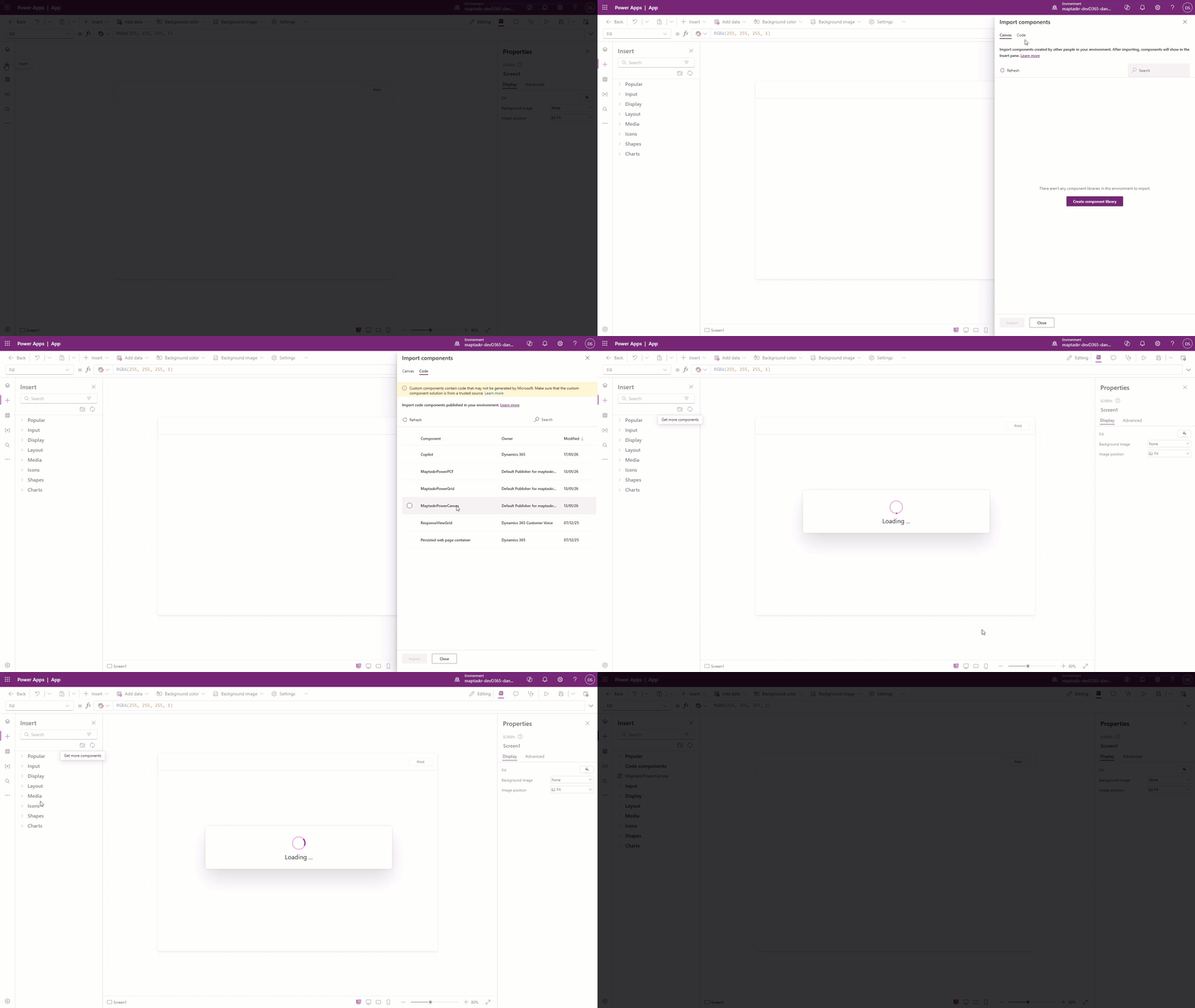
-
Choose the data source for the component. Use the Maptaskr Core Configs table so the control can read your profiles.
-
Configure the properties:
| Field | Value |
|---|---|
| MaptaskrCoreCanvas(Items) | Use Maptaskr Core Configs to list profiles. |
| Views | Active Maptaskr Core Configs. |
| Is Control Full Screen | Toggle true/false depending on layout needs. |
| Profile ID | Paste the ID from the configuration profile. |
| Width / Height | Set explicit dimensions when not fullscreen. |
- Save and publish the page so makers and end users get the updated experience.
The Maptaskr PCF will show a config error while editing a canvas page, this is normal. Publish the page, add it to a model-driven app, and test there to confirm the map loads correctly.