Adding a Basemap
Basemap Gallery presents a well-organized list of all active and configured basemaps from your selected providers. It allows you to seamlessly add, manage, and customize basemaps to suit your preferences.
If you’ve already configured one or more providers, your available basemaps will be readily accessible. Here, you can review each basemap’s details, adjust its configuration, and refine its styling with ease.
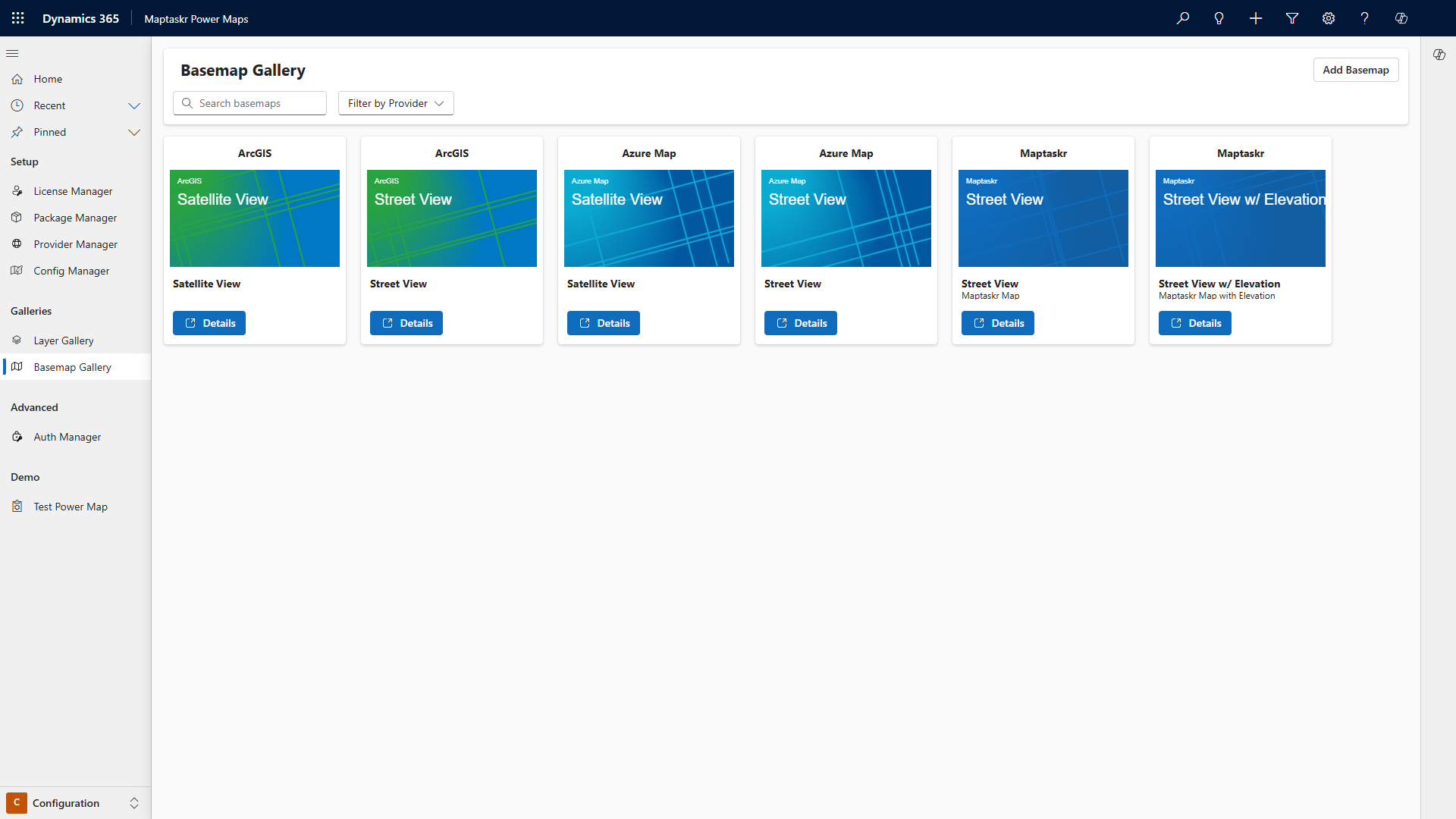
Adding a Basemap
-
Select Add Basemap in the upper-right corner.
-
On the Connection tab, select a Basemap Type:
- MapLibre Style Basemap for a MapLibre-compatible style JSON file.
- Raster Tile Basemap (XYZ/Slippy) for a URL template with
{z},{x}, and{y}placeholders. - ArcGIS Tiled Map Service Basemap for a cached ArcGIS MapServer service.
- ArcGIS Map Service Basemap for an ArcGIS MapServer service that renders map images on demand.
- OGC WMS Service Basemap for an OGC Web Map Service endpoint.
- OGC WMTS Service Basemap for an OGC Web Map Tile Service endpoint.
-
Enter the URL required by the selected type. See Supported Basemaps for endpoint examples and requirements.
-
If the service requires authentication, select Requires Authentication and choose an authentication profile.
tipTo create or update an authentication profile, select Edit Profiles and see Authentication Manager.
-
Select Query. The connection log confirms whether Power Maps can validate the service. A successful query can populate the basemap title and description from the service metadata.
-
Select the Details tab and review the title and description. Optionally, upload an image or configure an icon and color for the basemap banner.
-
Select the Basemap Styles tab. Raster services use pre-rendered images, so styling is limited to raster presentation such as visibility, opacity, and display order. MapLibre Style Basemaps can use the styles defined in their style JSON.
-
Select Add Basemap to save the configuration in Basemap Gallery.
-
To make the basemap available in a map, open Config Manager, select the configuration profile, enable it under Custom in Basemap Providers, and then select it as the Default Basemap.
Editing an existing basemap
-
Click
Detailson the basemap. -
Adjust and review the following tabs
- Connection
- Details
- Basemap Style
-
Once the update is complete, click
Update Basemapto save the configuration.