Selecting a Provider
The Provider Manager in Maptaskr Power Maps lets you connect to different mapping service providers. Your choice controls availability of Address Search (Geocode), Location Search (Reverse Geocode), Region Search, and Basemaps tailored to your organisation’s needs.
Why Install a Provider?
Installing a provider makes its mapping services available inside Maptaskr Power Maps. Different providers offer different features, pricing models, and geographic coverage. Please consult each provider’s documentation for details on their capabilities and costs.
Once installed and configured, you can select your preferred provider for each of the services when setting up a configuration profile. Maptaskr Power Maps allows the use of different providers for each service type, giving you flexibility to choose the best option for your use case.
Getting Started: Provider Setup
Follow these steps to install and configure a mapping provider:
- Open the Provider Manager:
- Go to the
Package Managertab in theConfigurationarea. - Select the
Setupsection.
- Install Your Preferred Provider(s):
- Click
Installnext to your chosen provider.
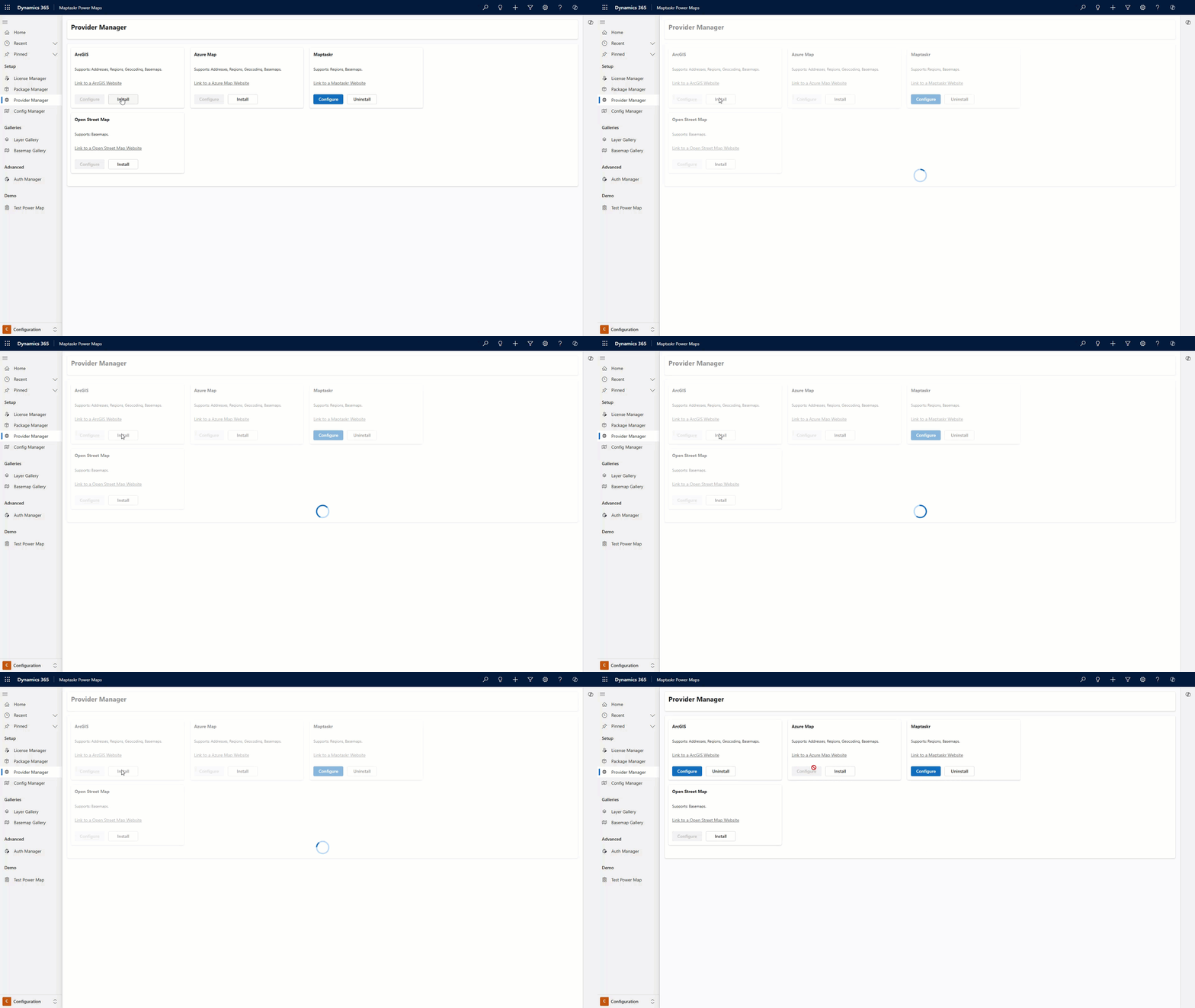
To use any of the mapping service providers below, you must have an appropriate service plan. These may incur additional costs. You’ll need to enter your service plan details when configuring the provider in Maptaskr.
Provider Feature Comparison
| Provider | Address Search (Geocoding) | Location Search (Reverse Geocode) | Region Search | Base Map | Routing |
|---|---|---|---|---|---|
| Azure Maps | ✔️ | ✔️ | ✔️ | ✔️ | ✔️ |
| ArcGIS | ✔️ | ✔️ | ✔️ | ✔️ | ✔️ |
| Maptaskr | ✔️ | ✔️ | ✔️ | ✔️ | ❌ |
| Here Maps | ✔️ | ✔️ | ✔️ | ❌ | ✔️ |
| OpenStreetMap | ❌ | ❌ | ❌ | ✔️ | ❌ |
Feature Definitions
- Address Search (Geocoding): Convert a user‑typed address or partial text into precise coordinates.
- Location Search (Reverse Geocode): Convert coordinates (lat/long) into the nearest known address or place label.
- Region Search: Query administrative or custom regions (e.g. state, suburb, sales territory) by name and return geometry + attributes.
- Base Map: Map tiles used as the background layer for all maps.
- Routing: Compute routes connecting selected waypoints.