Azure Maps Provider
Follow these steps to connect Maptaskr Power Maps to your Azure Maps account and enable Azure-powered mapping features:
Prerequisites
Ensure you have an active Azure Maps subscription and a valid API key. (How to get an Azure Maps Subscription Key)
Step-by-Step Setup
-
Open Provider Manager:
- Go to the
Package Managertab in theConfigurationarea. - Select the
Setupsection.
- Go to the
-
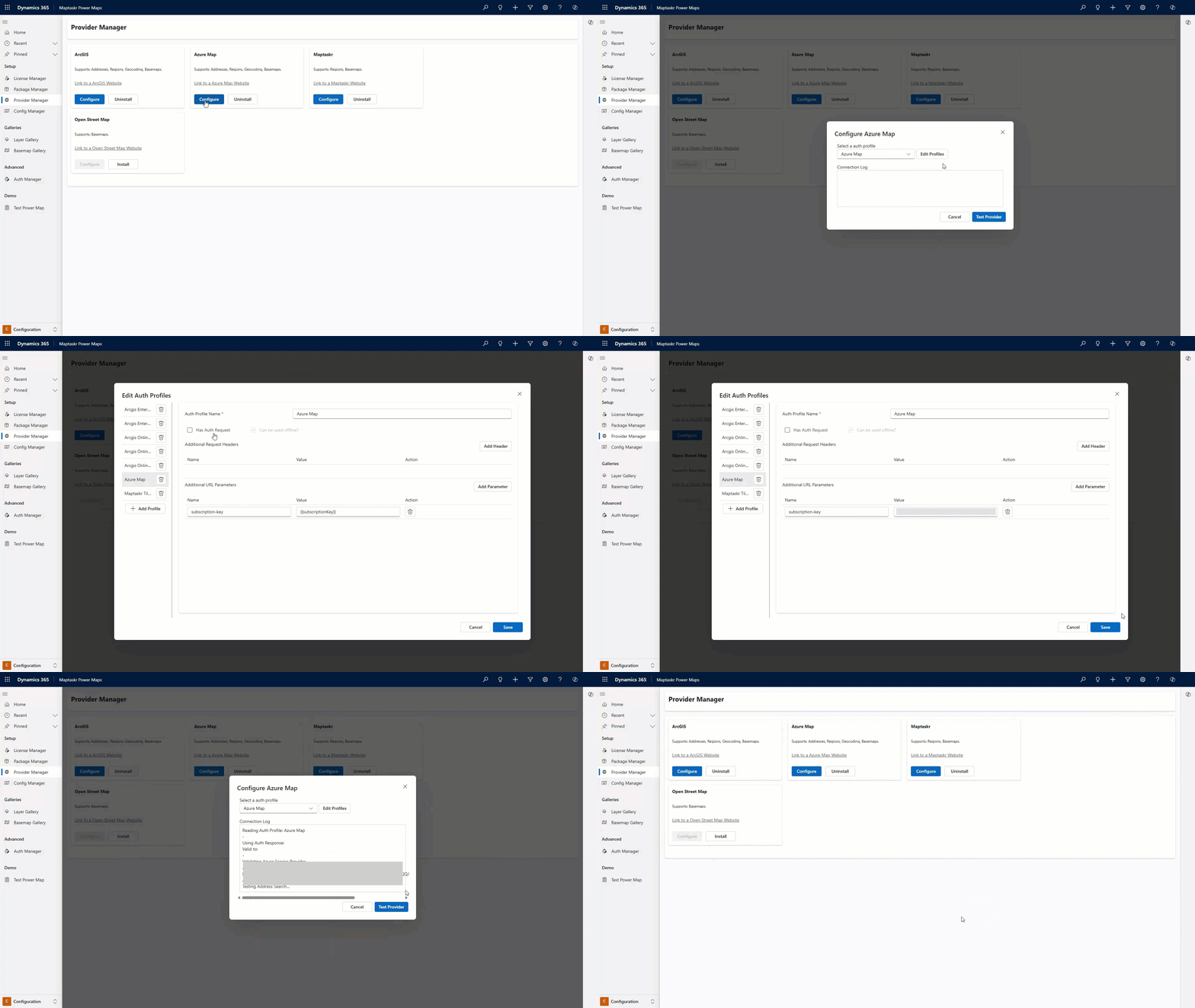
Configure Azure Maps Provider:
- Locate the Azure Maps card and click
Configure.
- Locate the Azure Maps card and click
-
Set Up Authentication Profile:
- Click
Edit Profilesto manage authentication profiles. - Select an existing profile or create a new one.
- Enter your Azure Maps API key in the appropriate field.
- Click
Saveto close the Edit Profiles dialog.
More about Authentication ProfilesLearn about authentication profiles and how they work: Authentication Profiles
- Click
-
Test and Save Provider:
- Click
Test Providerto verify your configuration. - If the test is successful, click
Save Providerto apply your settings.
- Click
Your Azure Maps provider is now configured. You can now use Azure Maps features such as base maps, geocoding, address search, and region search within Maptaskr Power Maps.