Configuring Authentication
Authentication Profiles define how map services (ArcGIS, Azure Maps, Maptaskr tiles) are authorized and accessed within your Maptaskr Power Maps implementation. These profiles handle the secure connection between your application and external map service providers.
What Authentication Profiles Do
Authentication profiles manage several critical aspects of service integration:
- Credential Storage: Securely store API keys, client secrets, and authentication tokens
- Token Management: Automatically handle token exchange, refresh cycles, and expiration
- Request Configuration: Define headers, URL parameters, and request formatting
- Service Access: Control which endpoints and features your application can access
- Security Enforcement: Implement proper authentication flows for different service types
When you install a provider, default profiles are auto-generated so you can begin testing immediately. These can be customized with your own credentials for production use.
Understanding the Interface
Authentication profiles are configured using a two-tab interface:
- Auth Details Tab: Configure basic authentication (API keys, headers, URL parameters)
- Auth Request Details Tab: Configure OAuth flows and advanced authentication
ArcGIS profiles are grouped into Enterprise (on-premises/self-hosted) and Online (hosted SaaS). Azure and Maptaskr ship with simplified key/tile profiles respectively.
- ArcGIS credentials: Get your API Key and Client ID/Secret from ArcGIS Developers
- Azure credentials: Obtain your subscription key from Azure Portal
Default Profiles by Provider
When all providers are installed, you'll see these built-in profiles that can be customized:
| Provider | Profile Name | Configuration Method | Authentication Type | Best For |
|---|---|---|---|---|
| ArcGIS Online | API Key | Auth Details → URL Parameters | API Key | Public services, quick setup |
| ArcGIS Online | Client ID/Secret | Auth Request Details → Credentials | Client Credentials | Server-to-server (legacy) |
| ArcGIS Online | Username/Password | Auth Request Details → Interactive | User Authentication | User-scoped content |
| ArcGIS Online | Authorization code with PKCE | Auth Request Details → OAuth | OAuth 2.0 + PKCE | Secure user authentication |
| ArcGIS Enterprise | Client ID/Secret | Auth Request Details → Credentials | Client Credentials | Private on-premises services |
| ArcGIS Enterprise | Username/Password | Auth Request Details → Session | User Authentication | Legacy or admin access |
| Azure Maps | Azure Map | Auth Details → URL Parameters | API Key | All Azure Maps services |
| Maptaskr Tile Auth | Maptaskr Tile | Internal | Internal | No config needed |
| Maptaskr AI Auth | Maptaskr AI | Internal | Internal | No config needed |
Authentication wizard
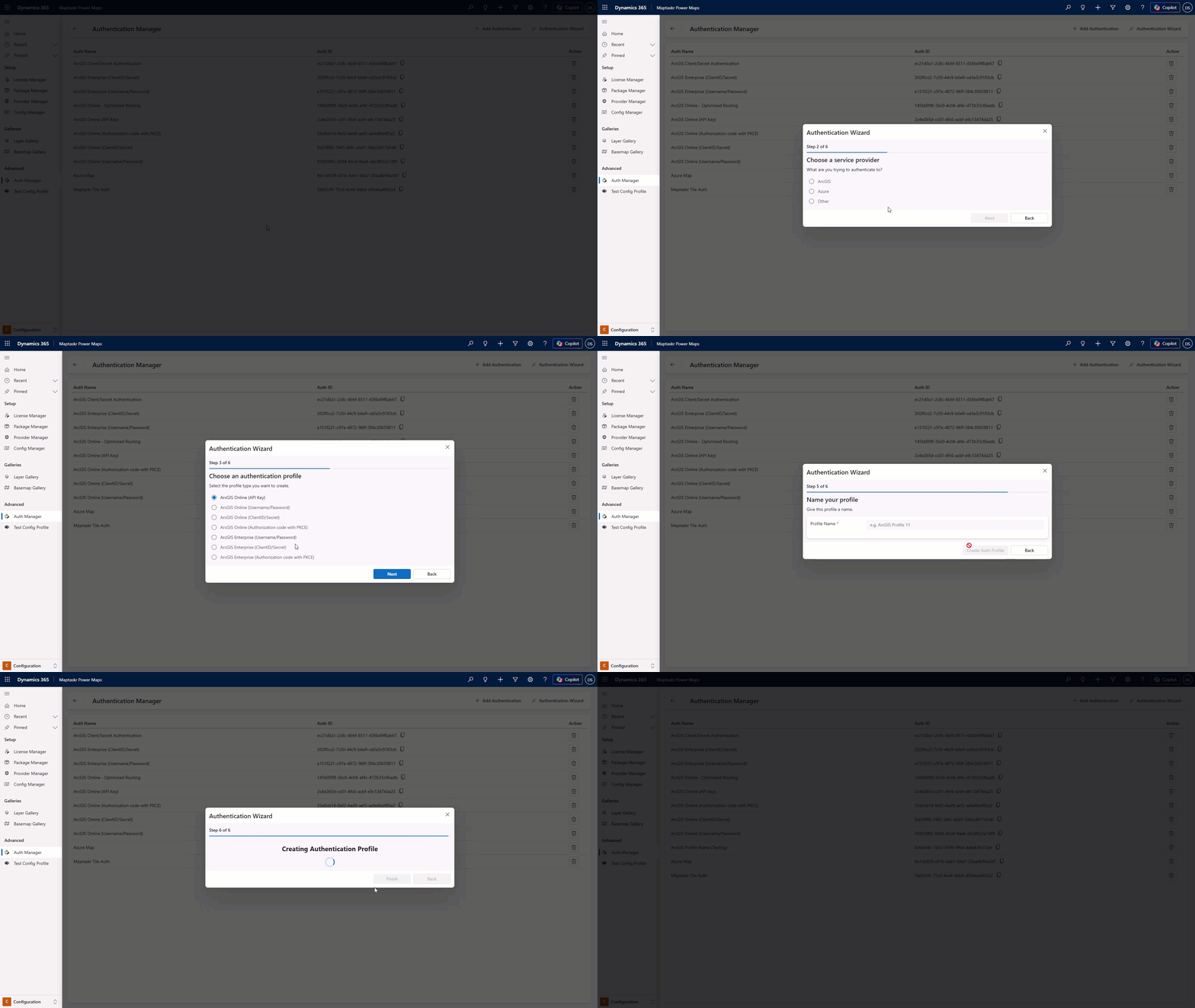
The authentication wizard is designed to fast-track profile creation, helping administrators connect to their services quickly and easily. The wizard does not guide profile editing. For editing guidance and expected behavior, see Configuration Guide by Authentication Type.
If you are not intending on configuring a profile for either ArcGIS or Azure then you will be required to manually create a profile
-
Click Authentication Wizard.
-
Follow the guided setup to create a new profile, starting by selecting a provider (ArcGIS or Azure).
-
Select one of the available profile types from the list.
-
Complete the fields shown for the selected profile type. For example, ArcGIS Online (API Key) requires a single key field, while ArcGIS Enterprise (Client ID/Secret) requires both a client ID and client secret.
-
Enter a name for the profile.
-
Click Finish to create the authentication profile. The new profile appears at the bottom of the list.
Configuration Guide by Authentication Type
Simple API Key Authentication
Use the Auth Details tab for straightforward API key authentication:
For URL Parameters (most common):
-
Navigate to Auth Details tab
-
Click Add Parameter
-
Configure the parameter:
- Name:
token(ArcGIS) orsubscription-key(Azure) - Value: Your actual API key
- Name:
-
Click Save
For Header-based APIs:
-
Navigate to Auth Details tab
-
Click Add Header
-
Configure the header:
- Name:
X-API-KeyorAuthorization - Value: Your API key or
Bearer your_token
- Name:
-
Click Save
Client Credentials Authentication
Use the Auth Request Details tab for client credential authentication (not true OAuth):
-
Navigate to Auth Request Details tab
-
Check Has Auth Request
-
Configure the client credential settings:
- Auth Request URL: Your token endpoint
- Method: Usually
POST - Auth Request Headers: Content-Type, etc.
- Auth Request Body: Client credentials (ID and secret)
- Token needs refreshing every: Set refresh interval
-
Check Can be used offline if needed
-
Click Save
This is client credential authentication, not true OAuth. For proper OAuth 2.0 flows with user authentication, see the OAuth with PKCE section below.
OAuth 2.0 with PKCE (New Feature)
Use the Auth Request Details tab for true OAuth 2.0 authentication with PKCE:
-
Navigate to Auth Request Details tab
-
Check Has Auth Request and Use OAuth
-
Configure the Authorization Endpoint:
- Authorization URL: OAuth authorization endpoint
- Authorization Query Parameters: Client ID, challenge, response type, etc.
-
Configure the Token Endpoint:
- Token URL: OAuth token endpoint (POST)
- Token Headers: Content-Type headers
- Token Request Body: Grant type, client credentials, PKCE verifier
-
Set Token needs refreshing every (in minutes)
-
Click Save
- User needs to authenticate with their own ArcGIS credentials
- Accessing user-specific or private content
- Enhanced security requirements
- Modern authentication best practices
For a complete step-by-step guide, see the OAuth Layer Authentication Tutorial.
The platform automatically handles token refresh and injection. Don't manually modify token parameters in your requests.
Interactive Username/Password
For services requiring user authentication:
-
Navigate to Auth Request Details tab
-
Check Has Auth Request
-
Configure authentication endpoint
-
Use Test Provider to capture credentials securely
-
Credentials are not stored - captured interactively when needed
Avoid storing named user credentials long-term. Migrate to client credential flows where license terms permit.
Common Configuration Examples
ArcGIS Online with API Key
Configuration: Auth Details → Additional URL Parameters
Parameter Name: token
Parameter Value: your_arcgis_api_key
Azure Maps
Configuration: Auth Details → Additional URL Parameters
Parameter Name: subscription-key
Parameter Value: your_azure_subscription_key
Custom API with Header Authentication
Configuration: Auth Details → Additional Request Headers
Header Name: X-API-Key
Header Value: your_custom_api_key
ArcGIS Enterprise Client Credentials
Configuration: Auth Request Details
- Has Auth Request: Checked
- Auth Request URL:
https://your-portal.com/portal/sharing/rest/oauth2/token - Method: POST
- Auth Request Body: Client ID and Secret configuration
- Token refresh interval: 60 minutes
ArcGIS Online OAuth with PKCE
Configuration: Auth Request Details
- Has Auth Request: Checked
- Use OAuth: Checked
- Authorization URL:
https://www.arcgis.com/sharing/rest/oauth2/authorize - Token URL:
https://www.arcgis.com/sharing/rest/oauth2/token - Authorization Query Parameters: Client ID, PKCE challenge, response type
- Token Request Body: Authorization code, PKCE verifier, client credentials
- Token refresh interval: 1440 minutes (24 hours)
Profile Management
Creating New Profiles
-
Navigate to Configuration → Auth Manager → Advanced
-
Click "Add New Profile"
-
Enter a descriptive profile name
-
Configure authentication using the appropriate tab
-
Save your changes
Security Best Practices
| Area | Recommendation | Implementation |
|---|---|---|
| Credential Scope | Use keys scoped only to required services | Review API key permissions in provider portals |
| Regular Rotation | Rotate secrets/keys every 90 days | Set calendar reminders for key rotation |
| Environment Separation | Use different credentials for dev/staging/prod | Create separate profiles for each environment |
| Monitoring | Track failed authentication attempts | Review logs for unusual authentication patterns |
| OAuth Preference | Use OAuth 2.0 with PKCE over client credentials or username/password where possible | Migrate to OAuth with PKCE for user authentication |
| Secure Storage | Never store secrets in notes or unrelated fields | Use only designated credential fields |
Common Validation Errors
When configuring profiles, you may encounter these validation messages:
| Error Message | Cause | Solution |
|---|---|---|
| "Key and value pairs cannot be empty" | Empty header or parameter fields | Fill in both Name and Value, or delete the row |
| "Auth Request URL is required" | "Has Auth Request" checked but no URL | Enter the OAuth endpoint URL or uncheck the option |
| "Auth Profile Name" required | Missing profile name | Enter a descriptive profile name |
Troubleshooting Authentication Issues
| Problem | Likely Cause | Resolution |
|---|---|---|
| 401 Unauthorized errors | Expired or invalid credentials | Rotate keys in provider portal and update profile |
| Services intermittently fail | Network timeouts or rate limits | Check network connectivity and API usage limits |
| Username prompt appears repeatedly | Session not persisting | Enable pop-ups in browser or switch to Client ID/Secret |
Summary
Well-configured authentication profiles ensure stable, secure, and performant map service integration across all environments. Key takeaways:
- Use the correct tab: Auth Details for simple keys, Auth Request Details for client credentials or OAuth
- Separate environments: Create dedicated profiles for dev, staging, and production
- Monitor and rotate: Regularly update credentials and monitor for issues
- Follow security best practices: Use least-privilege access and OAuth where possible