Installing Core Packages
Package Manager Overview
The Package Manager is the central hub for managing all core components of Maptaskr Power Maps. It empowers administrators to install, update, and configure everything needed for a successful deployment and ongoing maintenance.
Required Permissions
Use System Administrator, or an account with equivalent permissions for the particular operation, to install or update packages, including Quick Start solutions and Solution Accelerators. Quick Start installation can import both Maptaskr configuration data and a Dataverse solution, so the account must have the necessary data and solution-import permissions.
Power Maps Admin alone is not sufficient for these operations. Its Read access to package installation-status records allows startup checks to recognize an already installed package; it does not grant package-installation or solution-import permissions. Seeing Package Manager or an installation action does not establish permission to complete it.
What is the Package Manager?
The Package Manager streamlines a variety of essential tasks, including:
- Versioning: Track and update your Maptaskr Power Maps installation to ensure you are always running the latest version.
- Migration Packages: Install all required tables and configurations for new environments or major updates.
- Language Packs: Add, update, or reset language resources for multilingual support.
- Solution Accelerators: Deploy preconfigured templates and settings for rapid setup.
- Export & Import: Move configurations between environments for easy backup, migration, or replication.
How Does It Work?
Each section of the Package Manager is designed to be intuitive and focused on a specific area of configuration. You can:
- Install or update core solution components and dependencies
- Add or manage language packs for your users
- Apply Solution Accelerators for instant, preconfigured map experiences
- Export your current configuration for backup or import it into another environment
For a step-by-step setup, see the Quick Start Guide.
Installing Core Packages
When you install the Maptaskr Defaults, the following components are automatically created or updated in your environment:
- Maptaskr Service Providers: Adds default service provider records needed for integrations and data connections.
- Default Configuration Profiles: Installs standard configuration profiles to help you get started quickly.
- Default Basemaps: Sets up a selection of commonly used basemaps for immediate use in your maps.
- Account and Contact Table Enhancements: Updates the Accounts and Contacts tables to include Maptaskr Power Maps controls, enabling mapping features directly within these records.
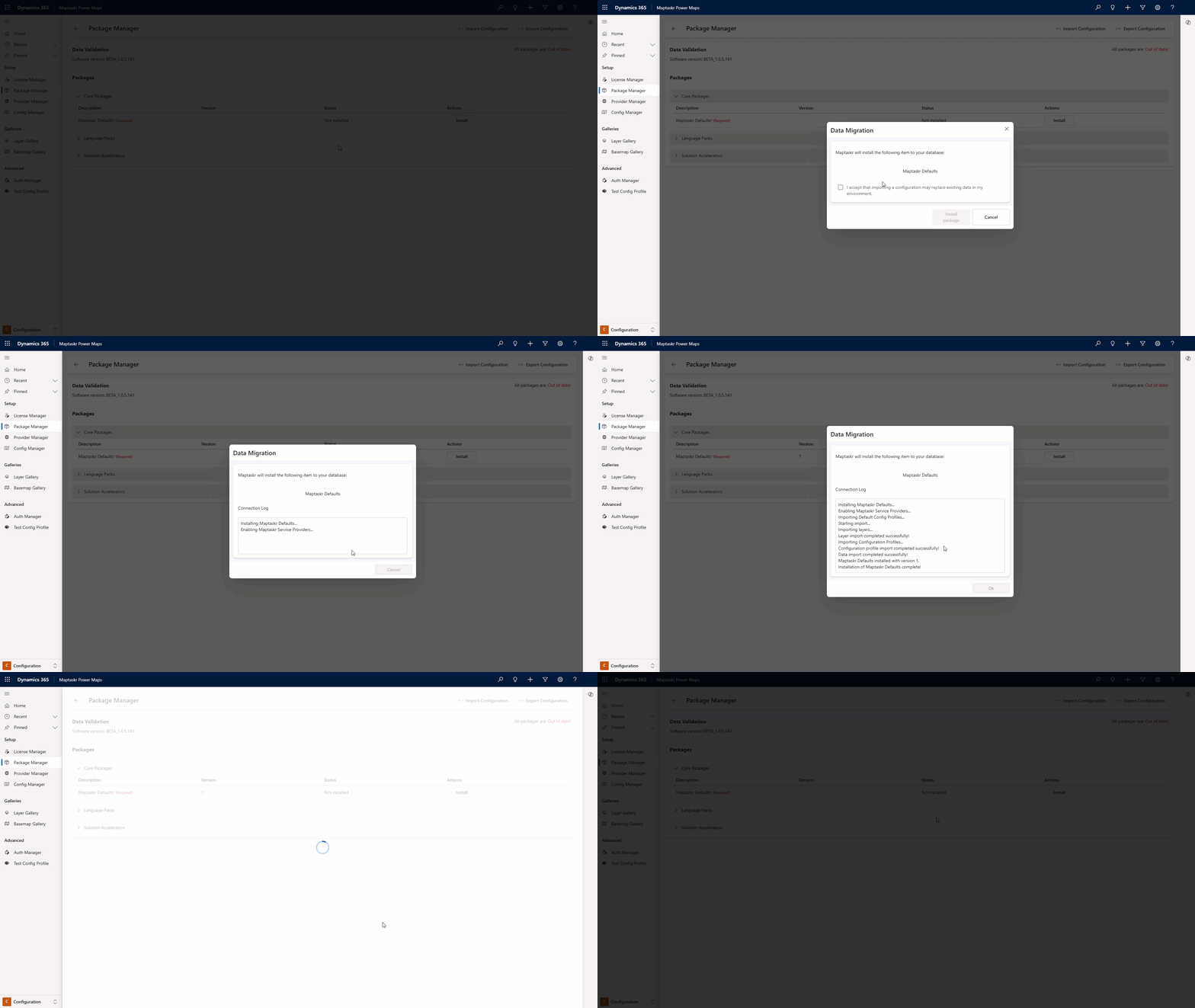
Follow these steps to install:
- In the Maptaskr Power Maps app, go to the Configuration area and open Package Manager.
- Expand the Core Package accordion (if it's not already expanded).
- Click Install – the installation modal opens.
- Review the terms, check the acceptance box, and confirm.
- Click Install Package – a real‑time log displays progress.
Installation can take up to 5 minutes. Do not close the window until it completes.
- When the status shows Completed, click OK to close the modal.
- Refresh (or navigate away and back) if the new records/settings don’t appear immediately.
Core Package Versions & Migrations
Every installed package has an internal version. This version maps to structural and data changes required for the environment to operate with the current release.
Release 6 Required Migration
Release 6 requires existing environments to update the Maptaskr Defaults package to version 2 after the Maptaskr Power Maps solutions and controls have been upgraded.
This migration refreshes existing configuration and map data so that it uses the Release 6 data and cache changes. It re-saves existing basemaps, layers, licenses, map views, routes, resources, user preferences, and configurations, and resets installed language packs. This is required for the Release 6 performance improvements to take effect.
Until the required package is current, Power Maps displays a Required packages are missing message. Administrators are directed to Package Manager to complete the update.
New environments receive version 2 when Maptaskr Defaults is installed for the first time; they do not need a separate migration update.
Upgrade an Existing Environment
Complete the solution upgrade before applying the package update:
- Upgrade the Maptaskr Power Maps solutions and controls to Release 6.
- Open the Maptaskr Power Maps app and go to Configuration > Package Manager. If the required-package message appears, select Manage Packages.
- Expand the Core Package section.
- On the Maptaskr Defaults row, select Update.
- Review the update details, accept the terms, and select Update Package.
- Keep the update window open while the progress log completes. The migration re-saves existing records, so its duration depends on the amount of data in the environment.
- When the update completes, confirm that Maptaskr Defaults shows version
2and that Update is no longer available. - Reopen Power Maps and confirm the required-package message no longer appears.
Do not close the update window or use Power Maps in the environment until the migration completes. Test the solution upgrade and package update in a lower environment before running them in production.
Future releases may introduce further package versions. Review the release notes after every solution upgrade and apply any required Maptaskr Defaults update before returning the environment to users.
Learn More About Each Section
Explore the following pages for detailed information and advanced options:
- Data Validation: Export and import configuration data between environments.
- Migrations: Install essential tables, default profiles, and basemaps for new environments.
- Language Packs: Add, update, or reset language resources for multilingual support.
- Solution Accelerators: Deploy preconfigured templates and settings for rapid setup.
The Package Manager brings all critical setup and maintenance tools into one place, making it easy to keep your Maptaskr Power Maps environment running smoothly and efficiently.