Map Views
Map Views enables users to capture and save a snapshot of their curated map, including layers, filters, current position, zoom level, tilt, current bearing, and basemap. This allows users to return to a dashboard or record and quickly pick up where they left off. Users can also share their views with team members, or request an admin to share them across the entire dashboard or record when useful.
Saved Attributes
Each Map View preserves the following:
- Current position
- Current zoom level
- Current tilt
- Current bearing
- Included layers
- Included map filters
- Included basemap
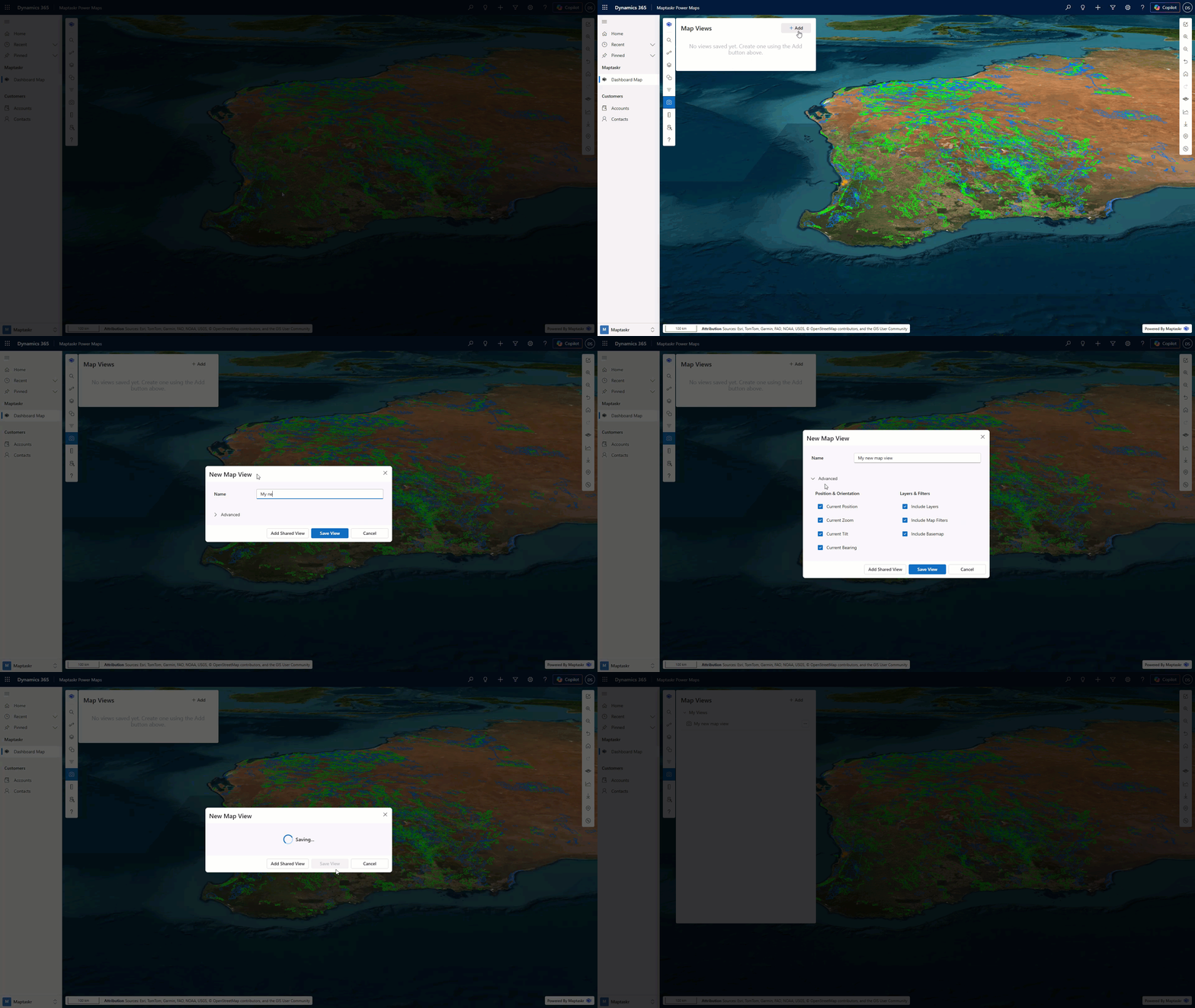
How to Create a Map View
-
Configure your map as desired.
-
Open the Map Views panel from the main menu.
-
Click New View.
-
Enter a name for your view.
-
(Optional) To save only part of your curated map, click Advanced.
-
Toggle off any map features you do not want to save.
-
Click Save View.
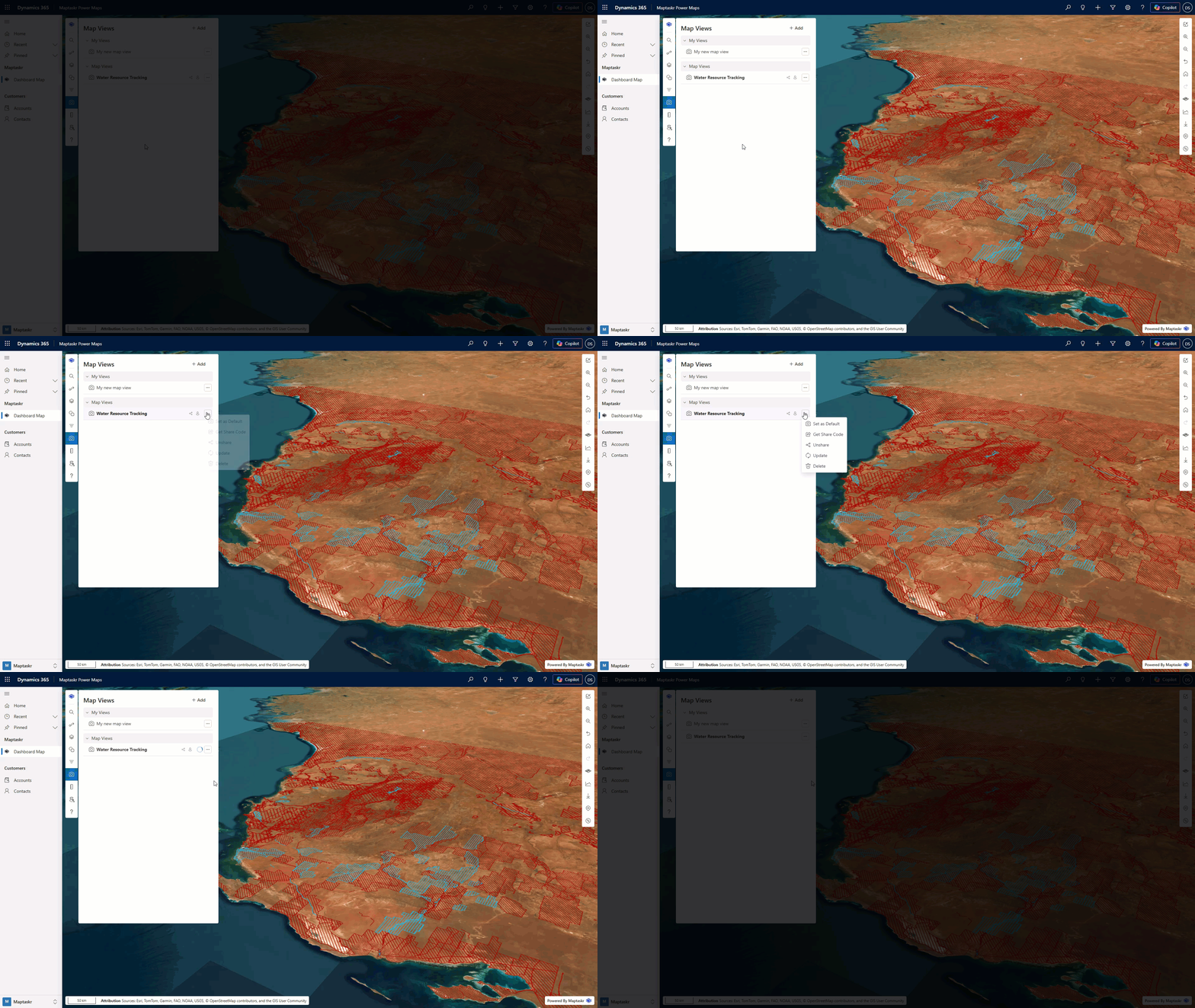
Map View Actions
Use the three-dot menu beside a map view to manage it. The menu only shows actions available for that view, based on its sharing state, ownership, your permissions, and the profile's sharing settings.
| Action | Description |
|---|---|
| Share | Shares the view with other users by creating a share code or (where permitted) making it available to everyone for this record or dashboard. |
| Unshare | Removes sharing from a view you shared previously. |
| Set as Default | Sets the selected view as the default view that loads first when this map opens. |
| Clear Default | Clears the current default view. |
| Get Share Code | Copies the code for a view shared by code. This action is available when sharing by code is enabled. |
| Remove Shared View | Removes a view shared by another user from your list without deleting the original view. |
| Update | Saves your current map state (position, zoom, tilt, bearing, layers, filters, and basemap) to the active view. |
| Delete | Permanently removes a view you are permitted to delete. |
When an action takes time, its status appears beside the map view name, for example Applying..., Sharing..., or Deleting.... A notification confirms successful apply, default, share, unshare, and delete actions, or reports when an action fails.
How to Open a Map View
-
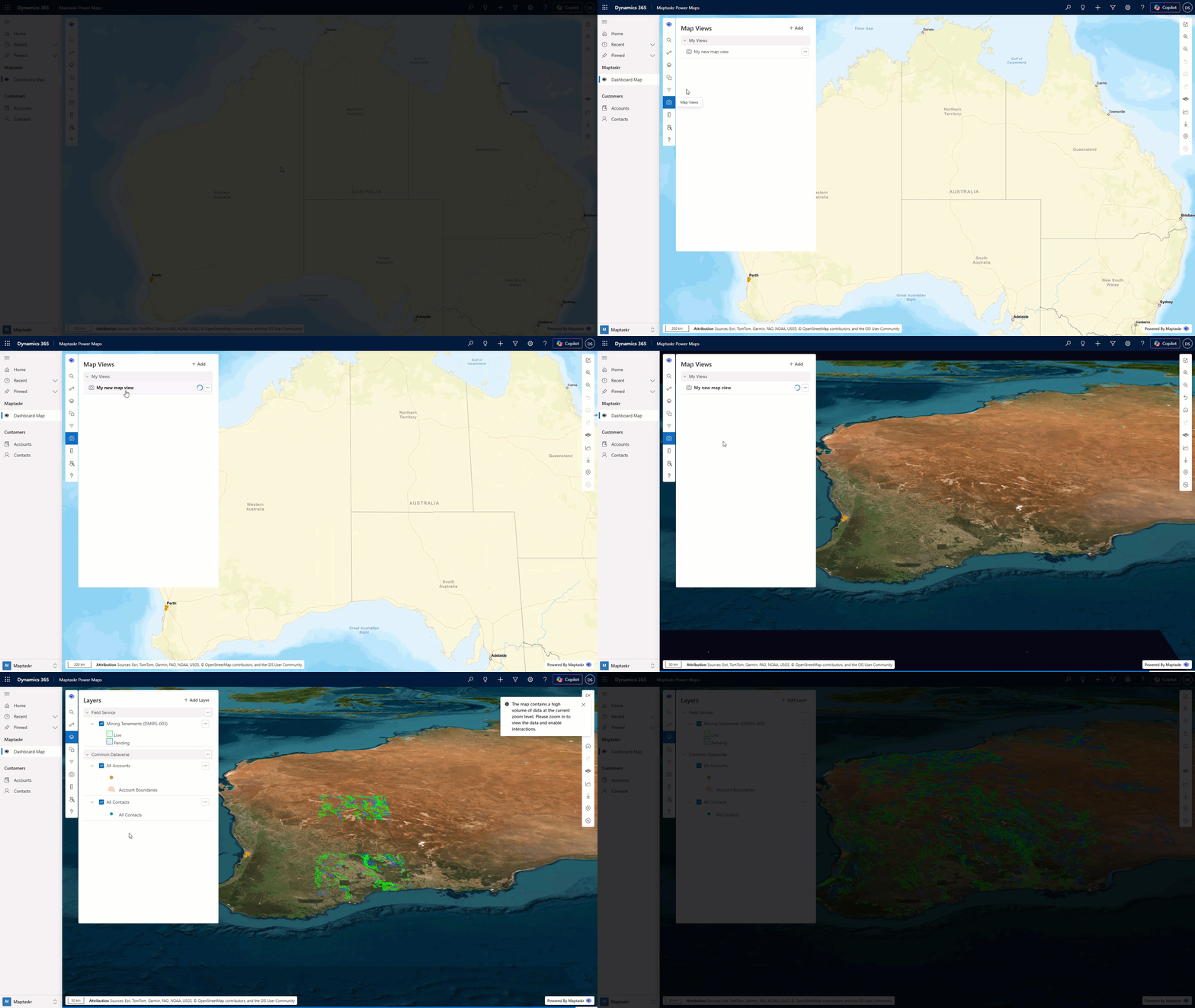
Open the Map Views panel.
-
Click the map view name you want to apply.
How to Update a Map View
To confirm you are actively using a view, check for the bold view name. The bold view is the one currently applied and the one you are working in.
-
Confirm you have selected a Map View
-
Modify any of the following items:
- Current position
- Current zoom level
- Current tilt
- Current bearing
- Included layers
- Included map filters
- Included basemap
-
Click the three-dot menu next to your view.
-
Click Update.
How to Delete a Map View
-
Open the Map Views panel from the main menu.
-
Click the three-dot menu next to the Map View you want to delete.
-
Click Delete.
How to Share a Map View
You can share a map view in two ways:
- Share with everyone who has access to the current map
- Share via a share code
The Share with everyone option can be configured so only admins can use it.
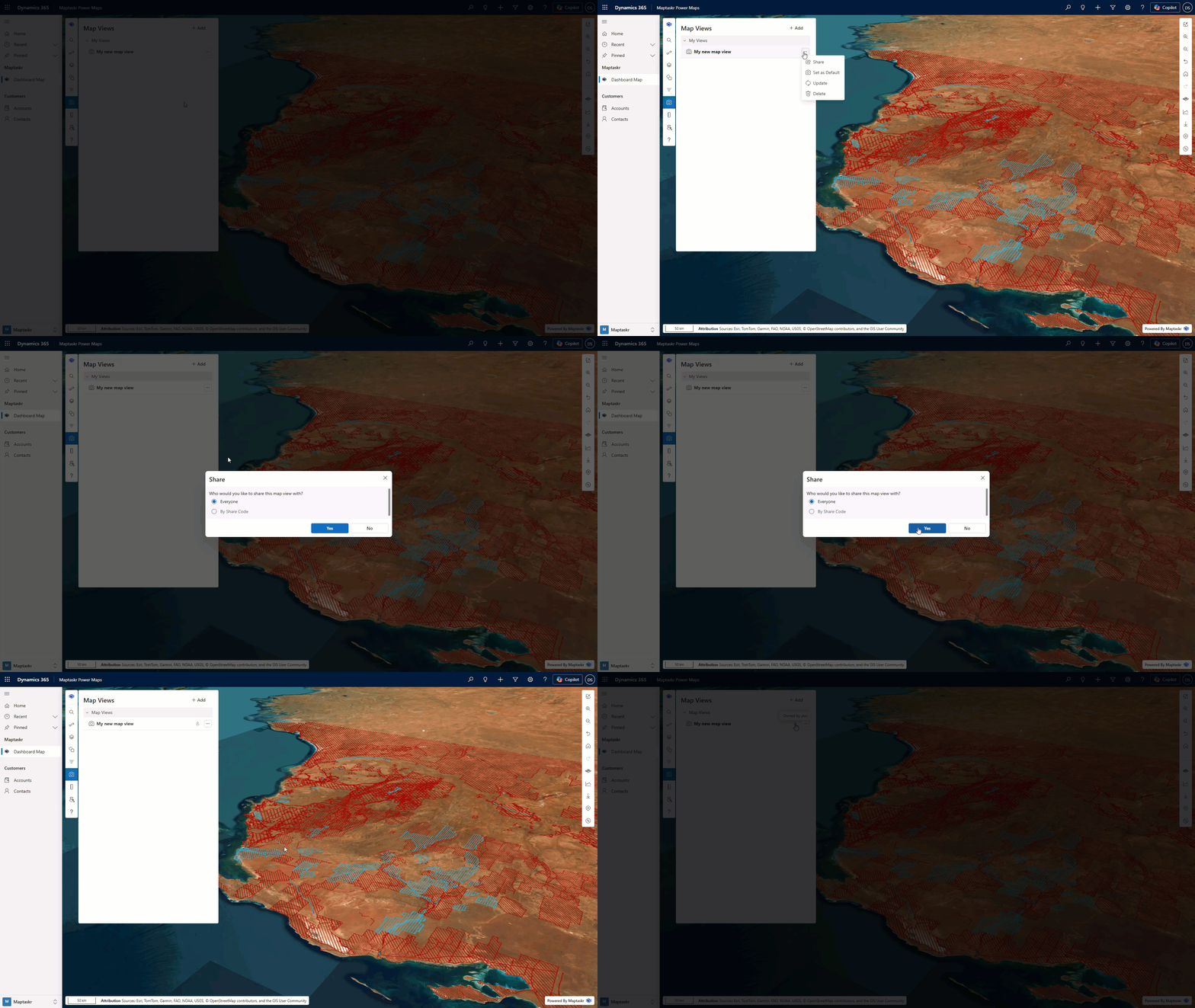
Share with everyone
Sharing with everyone makes this view available to all users who can access the current record or dashboard.
-
Click Share from the action menu for the map view you want to share.
-
Select Everyone.
-
Click Yes to confirm.
Share Code
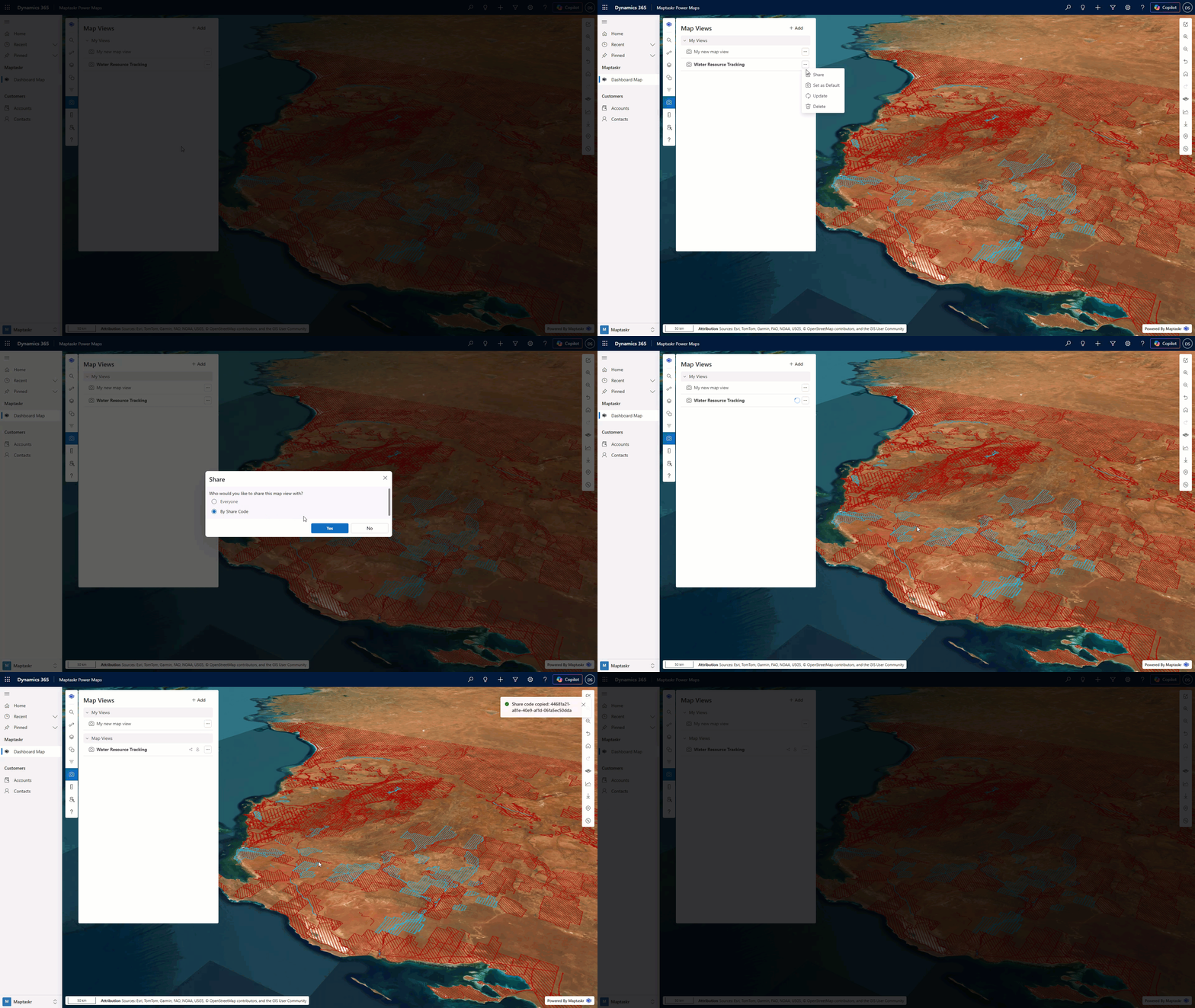
Share code lets you copy a unique ID for a map view and send it to specific users or groups. Recipients can use this code to add the shared view to their own Map Views list.
-
Click Share from the action menu for the map view you want to share.
-
Select By Share Code.
-
Click Yes to confirm.
-
The share code is copied to your clipboard. Paste it into your preferred communication channel so others can use it.
How to Add a Map View via Share Code
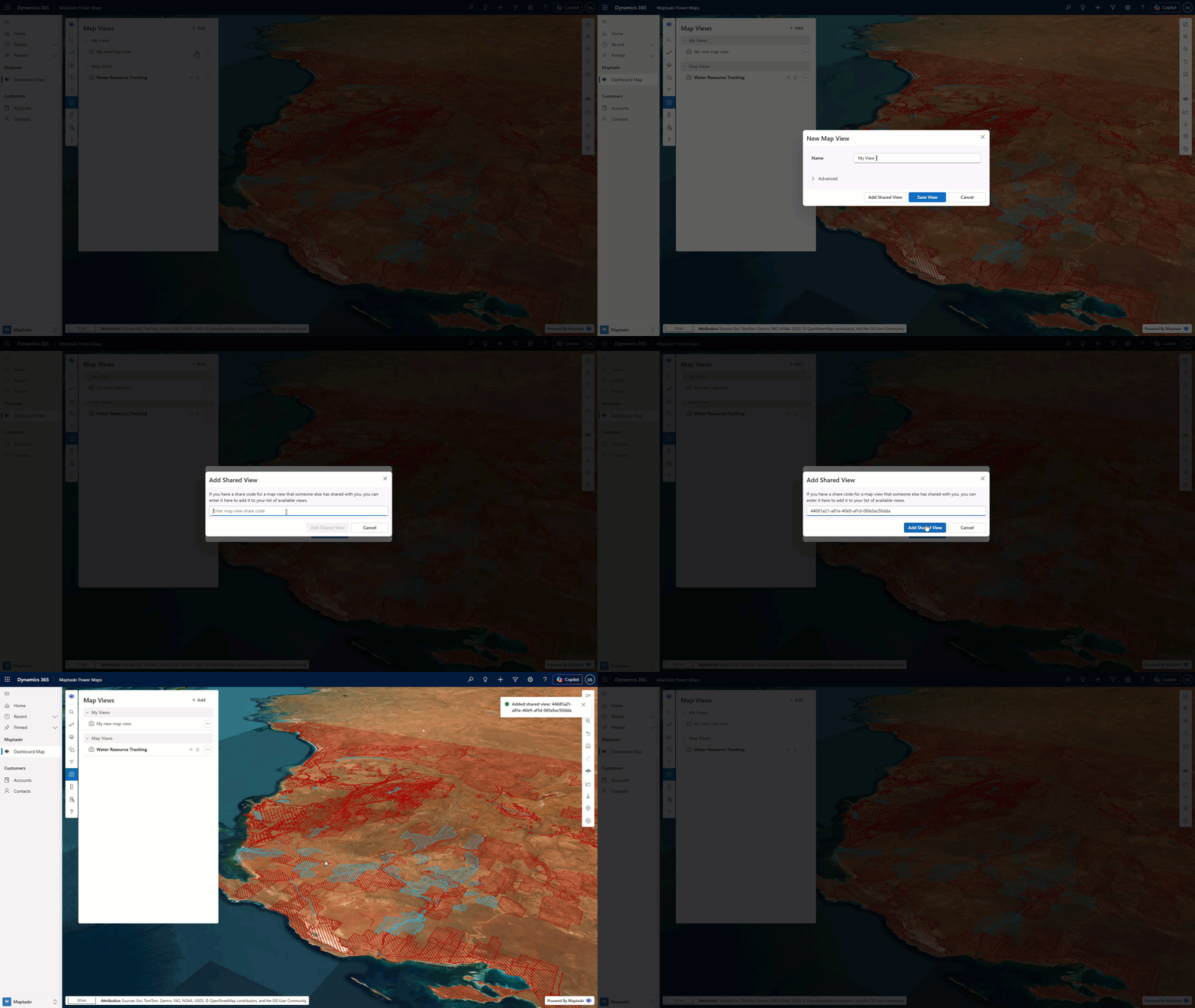
-
Copy the share code provided by another user.
-
Open the Map Views panel.
-
Click Add.
-
Click Add Shared View.
-
Paste the share code.
-
Click Add Shared View.
-
The shared view appears in its own group, separate from your personal map views.
How to Unshare a Map View
-
Click the action menu for the shared map view.
-
Click Unshare.
-
Confirm the change when prompted.