Routing
Use routing to build and manage waypoint-based paths on the map. This page covers creating routes from the context menu, search, or selected features, then managing route actions, routing options, waypoint actions, and waypoint order.
Creating a Route
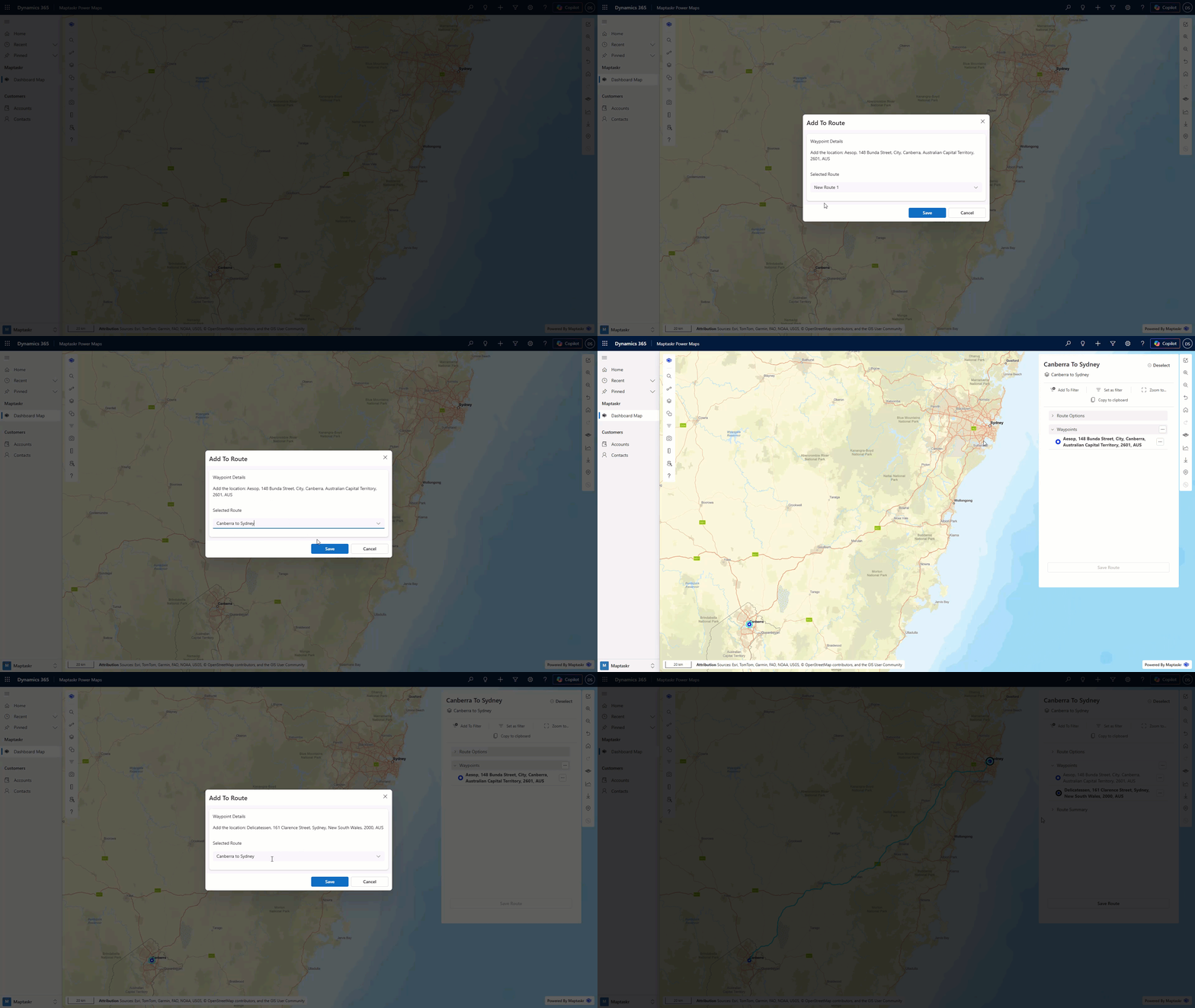
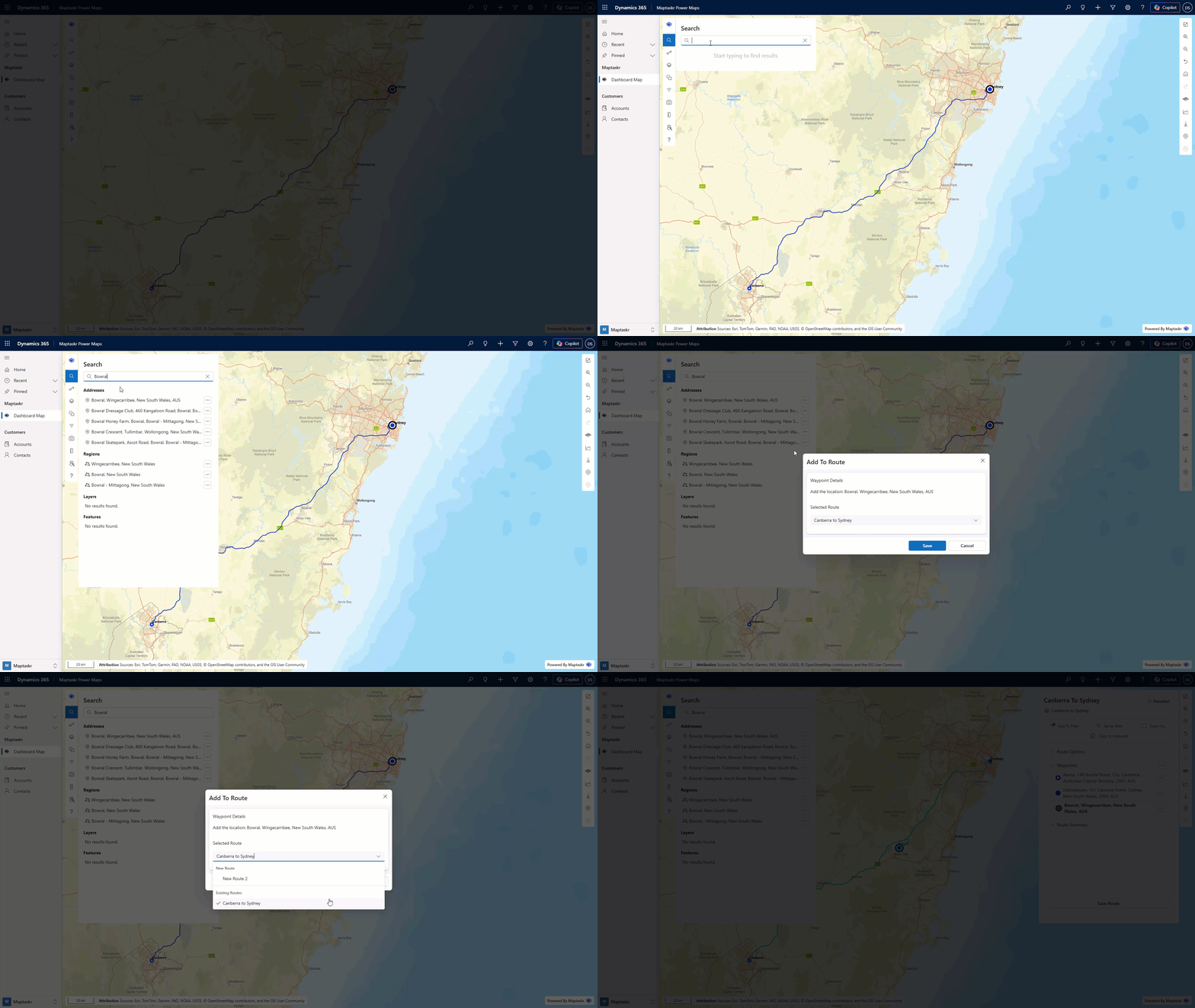
Creating a new route and adding to an existing route use the same workflow. Click Add to Route, then use the dropdown menu to either create a new route or select an existing one. The Using Search example below demonstrates adding to an existing route.
Using Context Menu
-
Navigate to the area where you want to add a waypoint (to start a new route or add to an existing route).
-
Right-click to open the context menu.
-
Click Add to Route.
-
In the Add to Route modal, either create a new route and enter a name, or use the dropdown to select an existing route.
-
The route properties panel opens, allowing to to manage the route
When a route is new or has been modified, it is marked as Unsaved. You can identify this in the left route panel by the Unsaved label and warning icon. To save the route, select it on the map (or click Edit Route from the three-dot menu in the route panel), then click Save Route in the properties panel.
Using Search
-
Open the search panel from the main menu.
-
Search for a feature, address, layer, region, or coordinate.
-
Click the three-dot menu next to the result you want to add.
-
Click Add to Route.
-
In the Add to Route modal, either create a new route and enter a name, or use the dropdown to select an existing route.
Using a Selected Feature
-
Navigate the map and select the feature you want to add.
-
Click the feature to open the properties panel.
-
Click Add to Route.
-
In the Add to Route modal, either create a new route and enter a name, or use the dropdown to select an existing route.
Managing a Route
Open a route by selecting it on the map or clicking its name in the Routes panel. Use the three-dot menu beside a route for actions such as editing, renaming, saving, reverting, sharing, copying, and deleting. The actions shown depend on the route's state and your permissions.
While an action is running, the route displays a spinner and status such as Loading route..., Saving..., Reverting..., or Sharing.... Wait until this status clears before starting another action on that route. Notifications confirm save, revert, rename, share, unshare, copy, and delete results, and report action errors.
Route Actions
The following actions are available from the three-dot menu or the selected route's properties panel, depending on the route's state and your permissions:
| Option | Description |
|---|---|
| Rename | Rename the selected route. |
| Add to Filter | Add the selected route to the current map filter criteria. |
| Set as Filter | Replace existing filter criteria with the selected route as the filter. |
| Zoom To | Zoom the map to the extent of the selected route. |
| Copy to Clipboard | Copy the route as a FeatureCollection so it can be pasted into another tool or note. |
| Route Options | Open additional actions and settings related to the selected route. |
| Waypoints | View and manage the waypoints that belong to the selected route. |
Example of a copied route:
{"type":"FeatureCollection","features":[{"type":"Feature","properties":{"routeName":"New Route 2","routeId":"7640bacc-9701-4bf7-9573-4085e7131d97","selectedWaypointId":"1773024538583"},"geometry":{"type":"GeometryCollection","geometries":[null,{"type":"Point","coordinates":[115.89009225416936,-32.111790258021195]}]}}]}
Routing Options
| Option | Description |
|---|---|
| Method of Transport | Drop down of either, car, walk, truck |
| Avoid | Multi select dropwon of Avoiding motorways, Tolls and Ferries ways, |
| Depart | Seting the deaparture date and time, this also plays in tway point times |
| Optimize Route | optimises the exisitn waypoints |
Route Style
| Option | Description |
|---|---|
| Visible by Default | If enabled, next time the map is loaded the route will be visible, if disabled it will be hidden until the user toggles visibility. |
| Route Colour | Set the route colour. This also updates the route colour shown in the route panel legend. |
Waypoints
The following actions are available for a selected waypoint:
| Action | Description |
|---|---|
| Set Durations | Set a default duration that applies to all waypoints in the route. |
| Clear Destinations | Remove all waypoints from the selected route. |
A Waypoint
The following actions are available for a selected waypoint:
| Action | Description |
|---|---|
| Zoom To | Zoom the map to the selected waypoint. |
| Delete Waypoint | Remove the selected waypoint from the route. |
| Rename Waypoint | Rename the waypoint for this route. If the waypoint comes from a feature, this does not rename the original feature in the layer. |
| Set Duration | Set the duration for the selected waypoint. |
Adding Waypoints
You can add waypoints without selecting the route each time. To do this, keep the route properties panel open, then use either the context menu Add to Route action or the search Add to Route action.
Changing the Order of Waypoints
Routes can be adjusted the same way you adjust the order on layers.
-
Select a route on the map, or in the route panel click Edit.
-
Click the three-dot menu next to the waypoint you want to move.
-
Select one of the following options (available options depend on the waypoint's current position in the route):
| Action | Description |
|---|---|
| Bring to Front | Move the waypoint to the first position in the route. |
| Bring to Forward | Move the waypoint one position earlier in the route. |
| Send to Back | Move the waypoint to the last position in the route. |
| Send to Backward | Move the waypoint one position later in the route. |
Use Case: Planning a Sales Route
This example shows why route options and waypoint actions are useful in day-to-day planning.
-
A sales rep starts by creating a new route and adding the first waypoint as the office (starting location). They locate the office and right click and select Add to Route.
-
They name the route and click Save.
-
In Routing Options, they set:
- Method of Transport:
Car - Avoid: none selected
- Depart: tomorrow at 8:00 AM
- Method of Transport:
-
In Route Style, they enable Visible by Default so the route always appears when the map loads. They keep the default route colour.
-
In Waypoints, they click the three-dot menu on the Waypoints accordion header, select Set Durations, and set the duration to
25minutes so each waypoint uses a 25-minute stop by default. -
They then add 8 account locations as waypoints. These are based on the accounts layer and are added by selecting an account and clicking Add to Route.
-
After all stops are added, they choose Optimize Route to reorder waypoints for a more efficient trip.
-
In the route summary, they can review:
- Total distance
- Travel time
- Total time
-
Later, they realise the second-last stop needs more time. They open that waypoint and set Set Duration to
45minutes. -
The route updates to reflect the new total timing.