Map Details
Map Core
When adding a new configuration profile, a Profile Name is required. Optionally, you can choose to inherit from an existing configuration profile. This will copy all variables from the parent profile while allowing you to override any of the inherited settings at any time.
The ID on the right is used when adding a map control. You can assign one or multiple map controls to use this as a configuration profile.
Provider Options
The Address Provider is required if you want to enable address search functionality. This list is populated based on the providers configured in the Provider Manager that support address search.
The Region Provider is required if you want to enable region search functionality. This list is populated based on the providers configured in the Provider Manager that support address search.
The Route Provider is required if you want to enable routing functionality. This list is populated based on the providers configured in the Provider Manager that support routing.
Calculation Engine Options
The Calculation Engine defines how the map control handles geographic calculations. Choose from these options:
| Engine Option | Description | Best For |
|---|---|---|
| Simple (Mercator) | Performs calculations in Web Mercator (EPSG:3857) screen space. Shapes retain the same visual size and form on the map, but areas and distances vary by latitude, becoming increasingly distorted toward the poles. | Fast, lightweight calculations where visual consistency on a flat map is more important than accuracy. |
| GeoJSON.io (WGS84) | Computes measurements using WGS84 latitude and longitude values. Latitudinal and longitudinal distances remain consistent, but shapes become increasingly squished toward the poles due to spherical assumptions. | GeoJSON workflows or when matching results from common open-source GIS tooling. |
| Spherical (WGS84) | Uses spherical Earth calculations (Haversine-based) on WGS84. Area and distance are preserved globally, but shapes appear to shrink visually as they approach the poles when rendered on a flat map. | Accurate geographic measurements, especially for large areas or globe-based views. |
| Custom JavaScript | Allows fully custom spatial logic via JavaScript, including third-party geospatial libraries or bespoke algorithms. | Advanced or highly specialized spatial analysis and precision-critical use cases. |
For more detailed information on each engine, see Calculation Engine.
Base map Providers and defaults
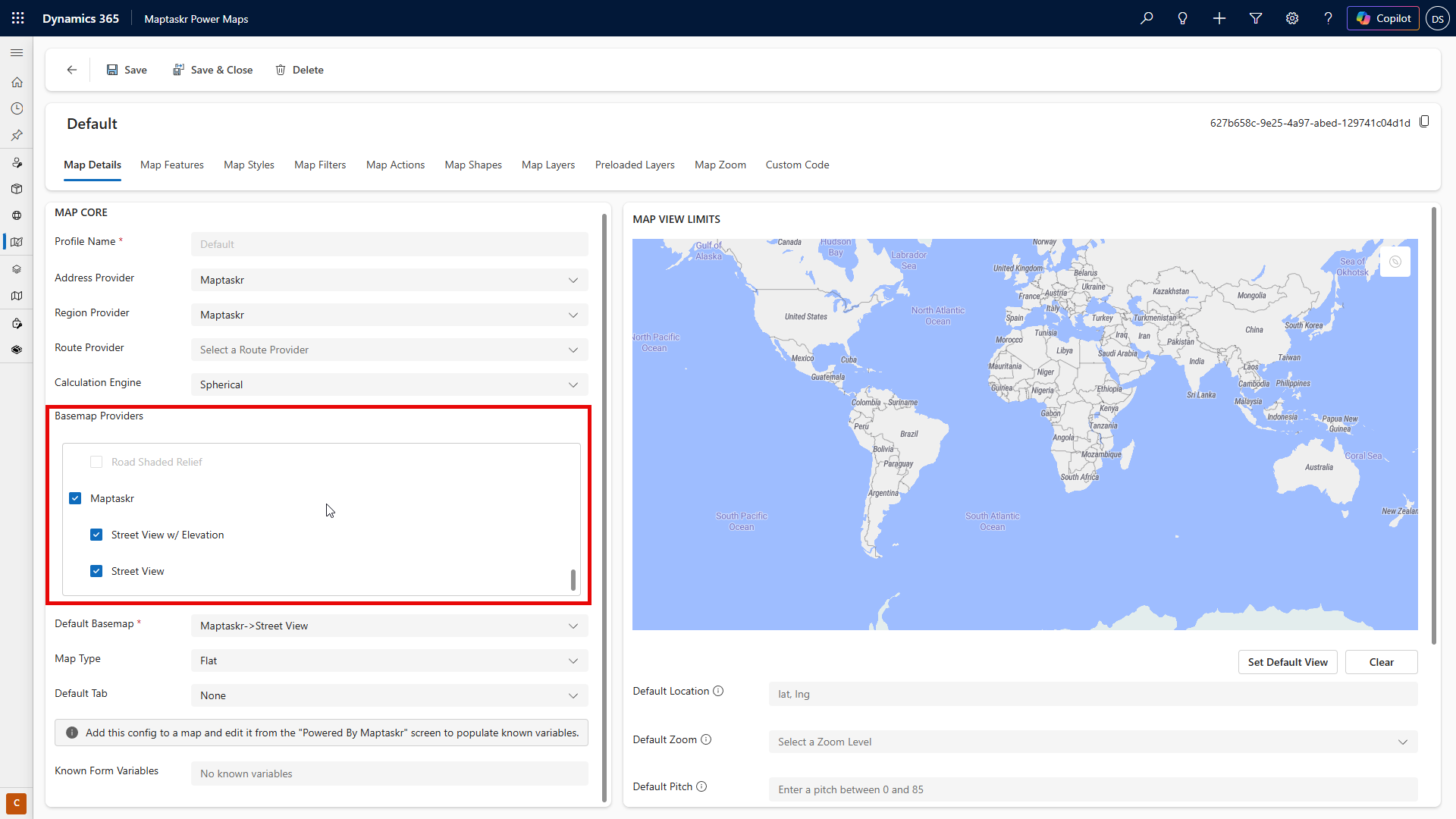
The Base Map Provider is required if you want to enable base map functionality. This list is populated based on the providers configured in the Provider Manager that support base map. Here, you can enable one or more base map providers, making them available to the user and allowing them to switch between them. Once at least one provider is selected under Base Map Providers, the default options will be populated. Be sure to select a default provider to load when the map initializes.
Map View Limits
The Map View Limits configuration enables administrators to define the initial view limits for when the map loads, including specifying the default geographic location, setting the initial zoom level, and applying constraints to the map's navigable area. Additionally, administrators can configure minimum and maximum zoom levels to control the range of zooming available to users, ensuring an optimized and consistent user experience.
Below is a table of the expected inputs for the default view
| Field | Description |
|---|---|
| Default Location | [Latitude],[Longitude] . |
| Default Zoom | number 1-24 |
| Constrain to Region | Enter map bounds as [minLat],[minLng],[maxLat],[maxLng] (e.g. -32, 115, -31, 116) |
| Min and Max Zoom | this is zoom constraint and expects number 1-24 |
Above these controls, you’ll find an interactive map that helps you set these fields. Each action includes a "Set" button, which automatically captures the relevant information from the map and fills in the fields for you. For example, clicking Set Default View will use the current viewport of the above map to set the zoom level and the center point (latitude and longitude) based on your current map position.
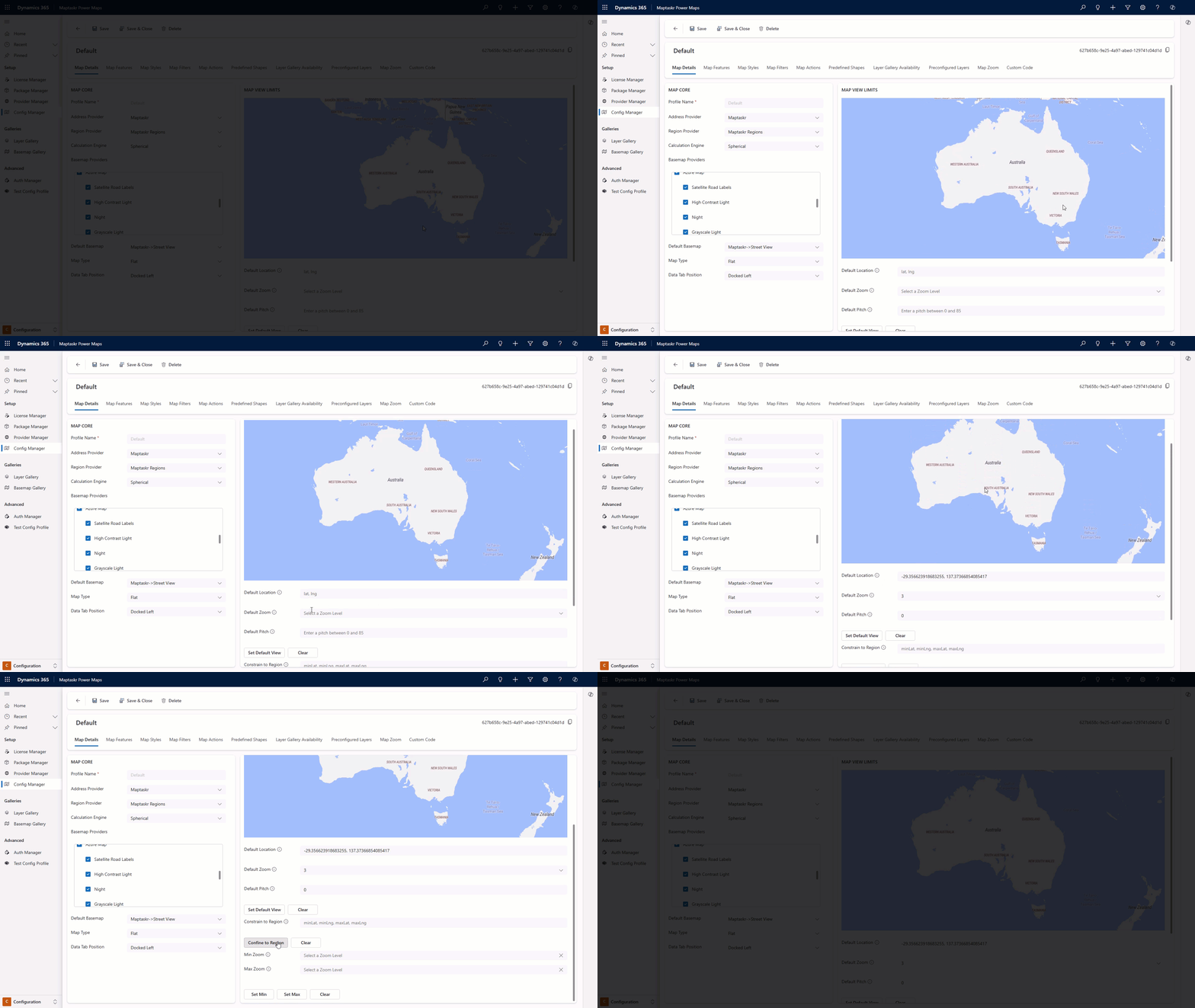
Constrain to Region is only available when using the flat map type. Globe maps do not support region constraints.
Default Tab
Use Default Tab to choose the panel that opens automatically when a user enters a map state. Choose None to leave that state without a configured default.
The available settings are grouped by map state:
| Map State | Configurable Default Tabs |
|---|---|
| Main Menu | Search, Layers, Shapes, Routes, Map Views, Measurement, Map Filters, AI, or Help |
| Shape Editing | Tools, Features, or Help when creating or editing a shape; Coordinate Edit or Help when editing shape geometry |
| Map Filters | Properties, Features, or Help when creating or editing a filter; Coordinate Edit or Help when editing filter geometry |
| Measurement | Coordinate Edit or Help when creating or editing a measurement |
The configured default opens when the user enters the corresponding state. It does not make a tab available: enable the related feature before selecting it as a default. For inherited profiles, enable the property override before changing these settings.
Config Profile Picker
Use the Config Profile Picker to select a different configuration profile when conditions on the current user or record are met. Configure the rules on the profile assigned to the map control; that assigned profile remains in use when no rule matches.
To add a profile picker rule:
- Open the profile used by the map control and select Map Details.
- In Config Profile Picker, select Add Rule.
- Add one or more conditions using the available form and user variables. Choose whether all conditions or any condition must match.
- Under Use this profile, select the target profile to load.
- Select Save Rule.
Repeat these steps to add more rules. Rules are evaluated in the order displayed, and the first matching rule selects its target profile. Place more specific conditions before broader conditions to ensure the intended profile is selected.
The profile currently being edited cannot be selected as a target. The Profile Picker evaluates rules only on the profile initially supplied to the map control; it does not continue evaluating rules on a selected target profile.
You can use the edit and delete controls on each rule to maintain the configuration. For a profile that inherits from another profile, select Override in the Config Profile Picker before changing inherited rules.